 DayPilot
The Vue Gantt chart displays a project schedule as task rows and a horizontal timeline. Show task hierarchies, milestones, dependencies, and progress, and let users adjust task dates directly.
This component is included in DayPilot Pro for JavaScript. It is not included in DayPilot Lite.
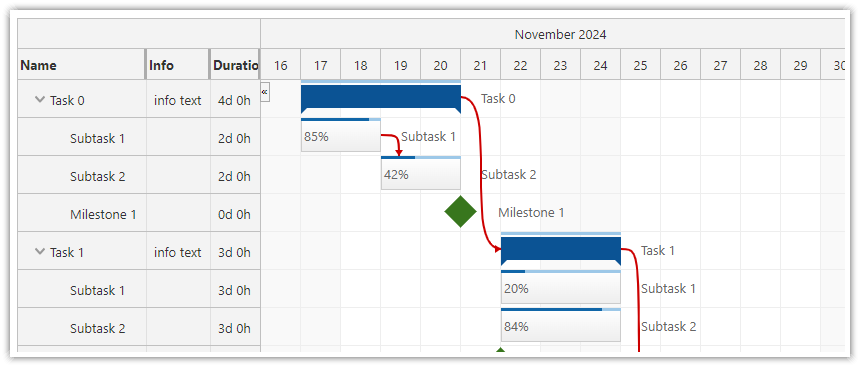
Vue Gantt Features
Task hierarchy. Put related tasks inside a parent's
childrenarray to display a task group. Expand or collapse the group to switch between its summary and individual tasks. The tutorial below shows a Planning group containing Kickoff, Requirements, and a Scope sign-off milestone.Duration, progress, and milestones. A task bar shows its start and end, and
completesupplies the completion percentage. A milestone marks a single date without a duration. The introductory example uses two task bars followed by a release milestone.Dependency links. A link references two task IDs. Its type selects which start or finish endpoints it connects. For example, a finish-to-start link connects the end of Planning to the start of Implementation. The link displays the relationship; your application defines any resulting date changes or scheduling rules.
Editable dates and task details. Move or resize a task, then save its changed dates in a callback. Display other task fields in row-header columns, or use Vue templates when a cell needs custom markup or controls.
Timeline and appearance. Choose the visible date range and time scale, customize task colors and context menus, and use image export to create a picture of the chart.
Show Task Details Beside the Timeline
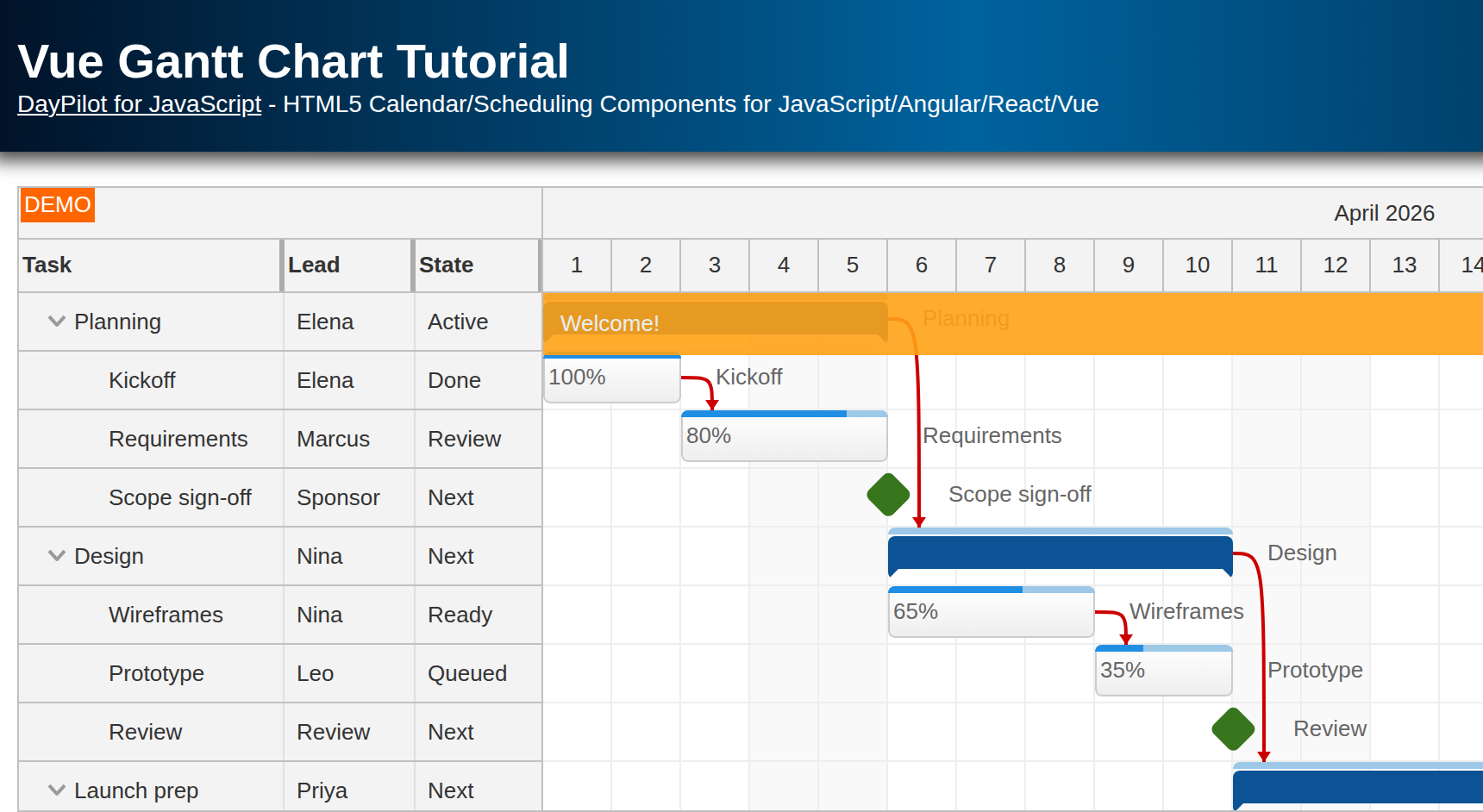
The Vue Gantt tutorial displays Task, Lead, and State columns beside a hierarchy of tasks and milestones. The Lead and State cells read the owner and status fields supplied with each task. This keeps those details aligned with the task bar as users expand and collapse groups. Try the live example.
Ordinary columns are enough for displaying field values. A #rowHeader template gives you control over the cell markup: for example, show a status as a colored label while leaving the task name as text. The integration example below demonstrates both forms using the same task data.
Demos and Tutorials
Each tutorial includes a downloadable project. The edition used by the example is shown beside its link.
Vue Gantt Project
Vue Gantt Chart Tutorial · Live demo (Pro)
Build a Vue 3 Gantt chart with task groups, milestones, links, and custom row columns.
Configure a Starter Project
Use Gantt UI Builder to explore settings in a live preview and download a Vue starter. Continue adjusting the generated configuration in your own code.
Installation
DayPilot Pro
At npm.daypilot.org, select Vue and copy the installation command for daypilot-pro-vue. Licensed customers can obtain their package URL in the customer area.
The examples use Vue 3 and the Composition API with <script setup>.
Display a Project with Dependencies
This project has a planning task, an implementation task and a release milestone. The links show the order of the work.
Gantt.vue
<script setup>
import {ref} from 'vue';
import {DayPilot, DayPilotGantt} from 'daypilot-pro-vue';

const tasks = ref([
  {id: 'planning', text: 'Planning', start: '2026-10-05', end: '2026-10-08'},
  {id: 'implementation', text: 'Implementation', start: '2026-10-08', end: '2026-10-20'},
  {id: 'release', text: 'Release', type: 'Milestone', start: '2026-10-20'}
]);

const links = ref([
  {id: 'L1', from: 'planning', to: 'implementation', type: 'FinishToStart'},
  {id: 'L2', from: 'implementation', to: 'release', type: 'FinishToStart'}
]);
</script>

<template>
  <DayPilotGantt
    startDate="2026-10-01"
    :days="31"
    scale="Day"
    :timeHeaders="[{groupBy: 'Month'}, {groupBy: 'Day', format: 'd'}]"
    :tasks="tasks"
    :links="links"
  />
</template>
A task has a unique id, display text, and start/end dates. Ends are exclusive: Planning occupies October 5–7. A milestone uses type: "Milestone" and a start date. Each link connects two task IDs; FinishToStart connects the predecessor’s finish to the successor’s start.
See task loading for data formats and loading options.
Dependency links visualize relationships. The application decides how related tasks should be rescheduled and stores any link changes. Use task groups to organize a larger project into a hierarchy.
Display Task Fields in Columns
This complete variation of the first example adds owner and status fields to the same three tasks. Each column's property selects the field to display. Bind the column definitions using :columns; the task and dependency-link bindings stay in place.
GanttDetails.vue
<script setup>
import {ref} from 'vue';
import {DayPilotGantt} from 'daypilot-pro-vue';

const columns = [
  {title: 'Task', property: 'text', width: 150},
  {title: 'Lead', property: 'owner', width: 90},
  {title: 'State', property: 'status', width: 100}
];

const tasks = ref([
  {id: 'planning', text: 'Planning', start: '2026-10-05', end: '2026-10-08',
    owner: 'Elena', status: 'Done', complete: 100},
  {id: 'implementation', text: 'Implementation', start: '2026-10-08', end: '2026-10-20',
    owner: 'Marcus', status: 'In progress', complete: 40},
  {id: 'release', text: 'Release', type: 'Milestone', start: '2026-10-20',
    owner: 'Elena', status: 'Planned'}
]);

const links = ref([
  {id: 'L1', from: 'planning', to: 'implementation', type: 'FinishToStart'},
  {id: 'L2', from: 'implementation', to: 'release', type: 'FinishToStart'}
]);
</script>

<template>
  <DayPilotGantt
    startDate="2026-10-01"
    :days="31"
    scale="Day"
    :timeHeaders="[{groupBy: 'Month'}, {groupBy: 'Day', format: 'd'}]"
    :columns="columns"
    :tasks="tasks"
    :links="links"
  />
</template>
The built-in progress bar reads complete; status is a separate label. Displaying an owner or status does not assign work or change the task dates. You can use the same column mapping for other fields in your task records. See Gantt columns for column rendering options.
Customize a Row-Header Cell
For custom markup, change the self-closing <DayPilotGantt ... /> above to opening and closing tags, keep all of its attributes, and put this slot inside. Here x is the zero-based column index: the State column displays a colored label, and the other columns display their mapped values.
<template #rowHeader="{task, x}">
  <span v-if="x === 2"
    :style="{color: task.data.status === 'Done' ? '#287d3c' : '#9a5b00'}">
    {{ task.data.status }}
  </span>
  <span v-else>{{ task.data[columns[x].property] }}</span>
</template>
The slot receives a DayPilot.Task, whose data contains the supplied task fields. Vue text interpolation displays these field values as text. Task-bar content is customized separately with the #task slot, shown later on this page.
Load Tasks and Links Together
Load a project as {tasks: [...], links: [...]}. Assign both collections from the same response so that every dependency refers to a task in that project.
GanttLoading.vue
<script setup>
import {ref, watch, onMounted} from 'vue';
import {DayPilot, DayPilotGantt} from 'daypilot-pro-vue';

const tasks = ref([]);

const links = ref([]);

onMounted(async () => {
  const url = '/api/projects/1';
  try {
    const {data} = await DayPilot.Http.get(url);
    tasks.value = data.tasks;
    links.value = data.links;
  } catch {
    await DayPilot.Modal.alert('Could not load data.');
  }
});
</script>

<template>
  <DayPilotGantt
    startDate="2026-10-01"
    :days="31"
    scale="Day"
    :timeHeaders="[{groupBy: 'Month'}, {groupBy: 'Day', format: 'd'}]"
    :tasks="tasks"
    :links="links"
  />
</template>
The /api/projects/1 URL represents your own backend. Failed requests display a DayPilot dialog.
Move, Resize and Save Tasks
Moving changes the task position; resizing changes its duration. Both work in the first example without extra configuration. The component updates the display and the supplied data object automatically.
Use the callbacks after the edit to persist the result. This example sends the changed record to the backend; it does not reload the collection after each drag.
GanttSaving.vue
<script setup>
import {ref} from 'vue';
import {DayPilot, DayPilotGantt} from 'daypilot-pro-vue';

const tasks = ref([
  {id: 'planning', text: 'Planning', start: '2026-10-05', end: '2026-10-08'},
  {id: 'implementation', text: 'Implementation', start: '2026-10-08', end: '2026-10-20'},
  {id: 'release', text: 'Release', type: 'Milestone', start: '2026-10-20'}
]);

const links = ref([
  {id: 'L1', from: 'planning', to: 'implementation', type: 'FinishToStart'},
  {id: 'L2', from: 'implementation', to: 'release', type: 'FinishToStart'}
]);

async function saveTask(data) {
  try {
    await DayPilot.Http.put(`/api/tasks/${data.id}`, data);
  } catch {
    await DayPilot.Modal.alert('The change could not be saved.');
  }
}
</script>

<template>
  <DayPilotGantt
    startDate="2026-10-01"
    :days="31"
    scale="Day"
    :timeHeaders="[{groupBy: 'Month'}, {groupBy: 'Day', format: 'd'}]"
    :tasks="tasks"
    :links="links"
    @taskMoved="saveTask($event.task.data)"
    @taskResized="saveTask($event.task.data)"
  />
</template>
The /api/tasks/{id} endpoint accepts the updated JSON record. A failed save is reported while the local edit remains visible; add retry or rollback behavior to suit your application. To disable an interaction, set taskMoveHandling or taskResizeHandling to "Disabled".
Handle a Task Click
To display the clicked item’s name, add this listener to the existing component tag:
@taskClick="DayPilot.Modal.alert(DayPilot.Util.escapeHtml($event.task.text()))"DayPilot.Modal.alert() accepts HTML. escapeHtml() displays the item’s name as plain text.
Render Custom Vue Content
This independent variation of the first example adds a scoped slot for the task content.
GanttContent.vue
<script setup>
import {ref} from 'vue';
import {DayPilot, DayPilotGantt} from 'daypilot-pro-vue';

const tasks = ref([
  {id: 'planning', text: 'Planning', start: '2026-10-05', end: '2026-10-08'},
  {id: 'implementation', text: 'Implementation', start: '2026-10-08', end: '2026-10-20'},
  {id: 'release', text: 'Release', type: 'Milestone', start: '2026-10-20'}
]);

const links = ref([
  {id: 'L1', from: 'planning', to: 'implementation', type: 'FinishToStart'},
  {id: 'L2', from: 'implementation', to: 'release', type: 'FinishToStart'}
]);
</script>

<template>
  <DayPilotGantt
    startDate="2026-10-01"
    :days="31"
    scale="Day"
    :timeHeaders="[{groupBy: 'Month'}, {groupBy: 'Day', format: 'd'}]"
    :tasks="tasks"
    :links="links"
    @beforeTaskRender="args => { args.data.box.htmlRight = ''; }"
  >
    <template #task="{task}">
      <strong>{{ task.text() }}</strong>
    </template>
  </DayPilotGantt>
</template>
The render callback clears the default label to the right of the task bar because the slot now displays that name inside the bar. The links binding remains in place.
Gantt supports task and rowHeader templates since DayPilot Pro 2026.2.6907. Task templates receive a DayPilot.Task; use task.complete() for progress. Row headers also receive x, the column index.
In Pro, templates also track reactive parent data: changing a value used inside a template refreshes its content automatically. The wrapper handles mounting and cleanup of template content.
Access the Gantt API
Find the release milestone by ID and scroll the timeline to its start. This is useful when a booking or task lies outside the current horizontal viewport.
GanttApi.vue
<script setup>
import {ref} from 'vue';
import {DayPilot, DayPilotGantt} from 'daypilot-pro-vue';

const gantt = ref(null);

const tasks = ref([
  {id: 'planning', text: 'Planning', start: '2026-10-05', end: '2026-10-08'},
  {id: 'implementation', text: 'Implementation', start: '2026-10-08', end: '2026-10-20'},
  {id: 'release', text: 'Release', type: 'Milestone', start: '2026-10-20'}
]);

const links = ref([
  {id: 'L1', from: 'planning', to: 'implementation', type: 'FinishToStart'},
  {id: 'L2', from: 'implementation', to: 'release', type: 'FinishToStart'}
]);

function showRelease() {
  const control = gantt.value.control;
  const task = control.tasks.find('release');
  control.scrollTo(task.start());
}
</script>

<template>
  <button @click="showRelease">Show release</button>
  <DayPilotGantt
    startDate="2026-10-01"
    :days="31"
    scale="Day"
    :timeHeaders="[{groupBy: 'Month'}, {groupBy: 'Day', format: 'd'}]"
    :tasks="tasks"
    :links="links"
    ref="gantt"
  />
</template>
The Vue template ref exposes the underlying control as gantt.value.control. The wrapper creates and disposes it. See the DayPilot.Gantt API for methods, properties and callbacks.
Availability
Availability of this feature in DayPilot editions:
| Product | Lite | Pro |
|---|---|---|
| DayPilot for JavaScript | ||
| DayPilot for ASP.NET WebForms | ||
| DayPilot for ASP.NET MVC | ||
| DayPilot for Java |