 DayPilot
The React monthly calendar displays events in a familiar month grid. Each row is a week and each cell is a day. Events can occupy part of one day or span several dates; an event crossing a week boundary continues on the following row.
The component is available in DayPilot Lite (open-source, Apache License 2.0) and DayPilot Pro (commercial). Both include React integration and TypeScript declarations.
React Monthly Calendar Features
DayPilot Lite and Pro
Single-day and multi-day events. Supply each event's start and end dates and let Month place it in the grid. Event ends are exclusive: the conference in the introductory example starts on October 5 and ends on October 8, so it occupies October 5–7. The first and last grid rows also contain dates from neighboring months.
Selection and drag-and-drop editing. Select a range of days to create an event, move an event to another date, or resize it to change its duration. The component updates the display; your callbacks supply editing dialogs and backend requests.
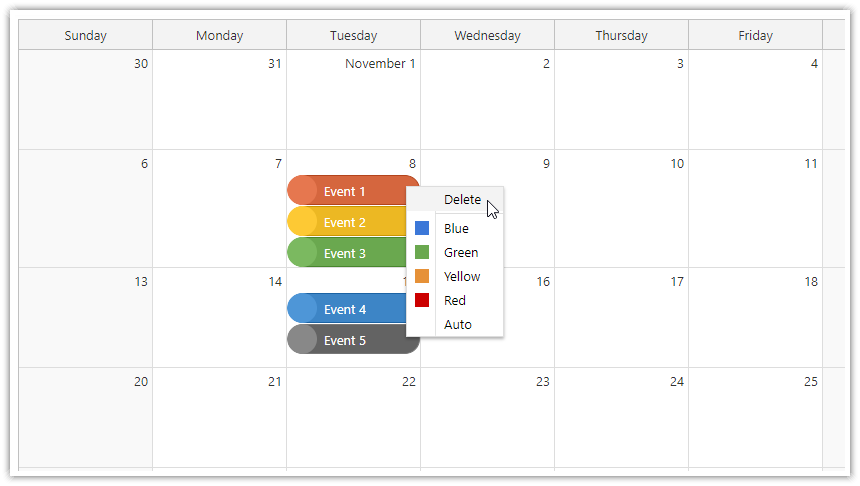
Event appearance and actions. Set event colors, customize the day cells, and attach a context menu. The monthly-calendar example lets the user right-click an event to change its color or delete it. It also uses CSS to turn the duration-bar indicator into a small colored circle.
Connected day, week, and month views. Use Month together with the React Calendar and React date picker. Your React state can supply the selected date and event collection to all of them. The example below shows how each component contributes a different view of that data.
Additional DayPilot Pro Features
React elements inside events. In Pro,
onBeforeEventDomAddcan supply JSX for the event content. Use it when the event should contain a React component rather than just text and colors. The custom-content lesson below demonstrates the hook; ordinary event colors and context menus remain available in Lite.Image and spreadsheet export. Export the month as JPEG, PNG, or SVG. Excel export writes the full month grid, including overlapping and multi-day events, using an ExcelJS reference supplied by your application.
See the feature matrix for a detailed edition comparison.
Switch Views While Keeping the Same Date and Events
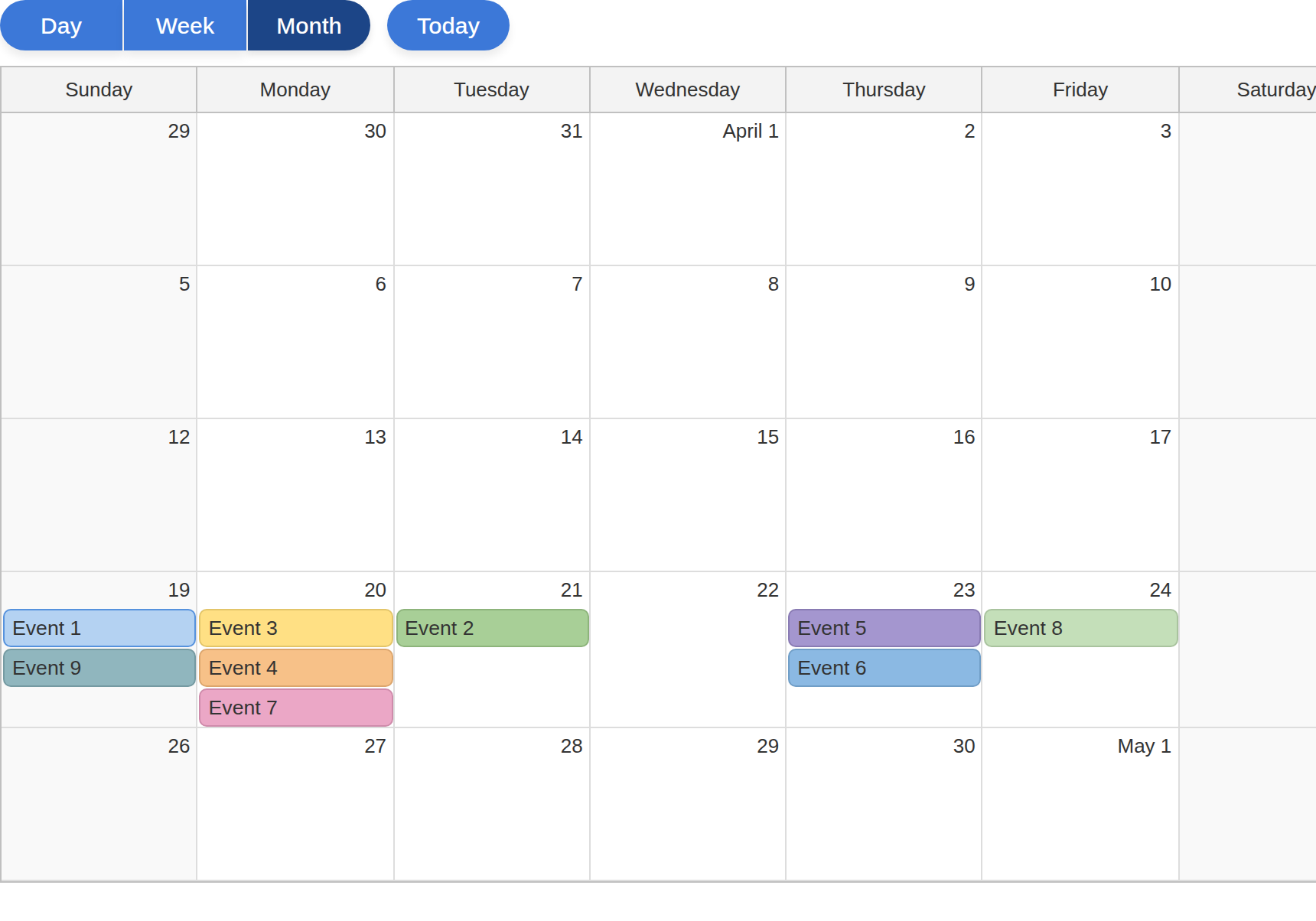
The combined-view example displays a date picker beside Day, Week, and Month buttons. The day and week views use DayPilotCalendar; the month view uses DayPilotMonth. Each receives the shared event collection, and React state controls which view is visible.
Select a date, then switch views: the date picker changes its selection mode to match the active view while the components keep the same selected date. Supplying events to the date picker also highlights busy days. These controls are wired together in the sample, so you can reuse the connection with a different layout or set of views. Try the combined-view demo (Lite).
Demos and Tutorials
Each tutorial includes a downloadable project. The edition used by the example is shown beside its link.
React and Next.js Examples
React Monthly Calendar Tutorial (Open-Source) · Live demo (Lite)
Build a monthly event calendar with custom colors, context menus, and editing.React Calendar with Day/Week/Month Views (Open-Source) · Live demo (Lite)
Switch between day, week, and month views with one event collection.Next.js Monthly Calendar (Open-Source) · Live demo (Lite)
Build a monthly scheduling interface in a Next.js client component.Next.js Calendar with Day/Week/Month Views (Open-Source) · Live demo (Lite)
Combine daily, weekly, and monthly views in Next.js.
Configure a Starter Project
Use Month UI Builder to explore settings in a live preview and download a React starter. Select the edition that matches your application. Continue adjusting the generated configuration in your own code.
Installation
DayPilot Lite
Install @daypilot/daypilot-lite-react from npm:
npm install @daypilot/daypilot-lite-reactDayPilot Pro
At npm.daypilot.org, select React and copy the installation command for daypilot-pro-react. Licensed customers can obtain their package URL in the customer area.
The examples use JavaScript/JSX and function components with React 18 or later.
Display a Monthly Calendar
This calendar shows a three-day conference in October.
Month.jsx
import {useState} from 'react';
import {DayPilot, DayPilotMonth} from '@daypilot/daypilot-lite-react';

export default function Month() {
  const [events] = useState([
    {id: 'conference', text: 'Conference', start: '2026-10-05', end: '2026-10-08'}
  ]);

  return <DayPilotMonth
    startDate="2026-10-01"
    weekStarts={1}
    events={events}
  />;
}
startDate selects the month; weekStarts: 1 starts each row on Monday. The conference occupies October 5–7: its October 8 end is exclusive. The grid also displays dates from adjacent months to fill its first and last weeks.
The examples use Lite. For Pro, change the package import to daypilot-pro-react.
See event loading for data formats and loading options.
Load the Full Visible Month
Navigation changes the month before reading visibleStart() and visibleEnd(). These methods include the adjacent-month days in the grid. Request events that overlap this entire range, rather than only events inside the named month.
MonthLoading.jsx
import {useState, useEffect} from 'react';
import {DayPilot, DayPilotMonth} from '@daypilot/daypilot-lite-react';

export default function Month() {
  const [startDate, setStartDate] = useState(new DayPilot.Date('2026-10-01'));

  const [month, setMonth] = useState(null);

  const [events, setEvents] = useState([]);

  useEffect(() => {
    if (!month) { return; }
    let active = true;
    const start = month.visibleStart();
    const end = month.visibleEnd();
    const url = `/api/events?start=${start}&end=${end}`;
    async function load() {
      try {
        const {data} = await DayPilot.Http.get(url);
        if (!active) { return; }
        setEvents(data);
      } catch {
        if (active) { await DayPilot.Modal.alert('Could not load data.'); }
      }
    }
    load();
    return () => { active = false; };
  }, [month, startDate]);

  function navigate(offset) {
    setStartDate(date => date.addMonths(offset));
  }

  return <>
    <button onClick={() => navigate(-1)}>Previous month</button>
    <button onClick={() => navigate(1)}>Next month</button>
    <DayPilotMonth
      startDate={startDate}
      weekStarts={1}
      events={events}
      controlRef={setMonth}
    />
  </>;
}
The /api/events URL represents your own backend. Return items that overlap the requested range: item start is before the requested end, and item end is after the requested start. Failed requests display a DayPilot dialog.
The effect cleanup prevents an older response from replacing data after another navigation action.
React runs this effect after the updated date has reached the Month component.
Create Events by Selecting Time
This complete variation of the first example handles time range selection. The selection supplies the dates; the dialog supplies the name.
MonthCreation.jsx
import {useState} from 'react';
import {DayPilot, DayPilotMonth} from '@daypilot/daypilot-lite-react';

export default function Month() {
  const [events] = useState([
    {id: 'conference', text: 'Conference', start: '2026-10-05', end: '2026-10-08'}
  ]);

  return <DayPilotMonth
    startDate="2026-10-01"
    weekStarts={1}
    events={events}
    onTimeRangeSelected={async args => {
      const modal = await DayPilot.Modal.prompt('Event name:', 'New event');
      args.control.clearSelection();
      if (modal.canceled) { return; }
      args.control.events.add({
        id: DayPilot.guid(), text: modal.result,
        start: args.start, end: args.end
      });
    }}
  />;
}
Canceling the dialog leaves the data unchanged. events.add() inserts the new event locally. In an application with a backend, create the record with a POST request and use the returned ID before adding it to the view.
Move, Resize and Save Events
Moving changes the event position; resizing changes its duration. Both work in the first example without extra configuration. The component updates the display and the supplied data object automatically.
Use the callbacks after the edit to persist the result. This example sends the changed record to the backend; it does not reload the collection after each drag.
MonthSaving.jsx
import {useState} from 'react';
import {DayPilot, DayPilotMonth} from '@daypilot/daypilot-lite-react';

export default function Month() {
  const [events] = useState([
    {id: 'conference', text: 'Conference', start: '2026-10-05', end: '2026-10-08'}
  ]);

  async function saveEvent(data) {
    try {
      await DayPilot.Http.put(`/api/events/${data.id}`, data);
    } catch {
      await DayPilot.Modal.alert('The change could not be saved.');
    }
  }

  return <DayPilotMonth
    startDate="2026-10-01"
    weekStarts={1}
    events={events}
    onEventMoved={args => saveEvent(args.e.data)}
    onEventResized={args => saveEvent(args.e.data)}
  />;
}
The /api/events/{id} endpoint accepts the updated JSON record. A failed save is reported while the local edit remains visible; add retry or rollback behavior to suit your application. To disable an interaction, set eventMoveHandling or eventResizeHandling to "Disabled".
Handle an Event Click
To display the clicked item’s name, add this prop to the existing component:
onEventClick={args => DayPilot.Modal.alert(DayPilot.Util.escapeHtml(args.e.text()))}DayPilot.Modal.alert() accepts HTML. escapeHtml() displays the item’s name as plain text.
Render Custom React Content
This independent variation of the first example adds JSX to the event through onBeforeEventDomAdd. It uses the Pro package; Lite does not provide this JSX event hook for Month.
MonthContent.jsx
import {useState} from 'react';
import {DayPilot, DayPilotMonth} from 'daypilot-pro-react';

export default function Month() {
  const [events] = useState([
    {id: 'conference', text: 'Conference', start: '2026-10-05', end: '2026-10-08'}
  ]);

  return <DayPilotMonth
    startDate="2026-10-01"
    weekStarts={1}
    events={events}
    onBeforeEventDomAdd={args => {
      args.element = <strong>{args.e.text()}</strong>;
    }}
  />;
}
Access the Month API
Use the event collection API to find and rename the conference. The wrapper reference, button and handler are shown together.
MonthApi.jsx
import {useState} from 'react';
import {DayPilot, DayPilotMonth} from '@daypilot/daypilot-lite-react';

export default function Month() {
  const [month, setMonth] = useState(null);

  const [events] = useState([
    {id: 'conference', text: 'Conference', start: '2026-10-05', end: '2026-10-08'}
  ]);

  async function renameEvent() {
    const control = month;
    const event = control.events.find('conference');
    const modal = await DayPilot.Modal.prompt('Event name:', event.text());
    if (modal.canceled) { return; }
    event.text(modal.result);
    control.events.update(event);
  }

  return <>
    <button disabled={!month} onClick={renameEvent}>Rename conference</button>
    <DayPilotMonth
      startDate="2026-10-01"
      weekStarts={1}
      events={events}
      controlRef={setMonth}
    />
  </>;
}
React receives the underlying control through controlRef. The wrapper creates and disposes it. See the DayPilot.Month API for methods, properties and callbacks.
Use Next.js
Place the introductory component in Month.jsx and add 'use client'; at the top. Create a client wrapper that loads it with server rendering disabled:
MonthClient.jsx
'use client';

import dynamic from 'next/dynamic';

const Month = dynamic(() => import('./Month'), {ssr: false});

export default function MonthClient() {
  return <Month />;
}
Import MonthClient in your page and render <MonthClient />. The Next.js client wrapper keeps the DayPilot component in the browser. The tutorials above provide complete project setups.
Availability
Availability of this feature in DayPilot editions:
| Product | Lite | Pro |
|---|---|---|
| DayPilot for JavaScript | ||
| DayPilot for ASP.NET WebForms | ||
| DayPilot for ASP.NET MVC | ||
| DayPilot for Java |