 DayPilot
The React date picker (DayPilot Navigator) displays a compact calendar for choosing a day, week, month, or custom date range. Use it beside a larger Calendar, Month, or Scheduler view to change the displayed dates. It can show several months at once and mark days that contain events, so users can see scheduled dates before opening them.
The component is available in DayPilot Lite (open-source, Apache License 2.0) and DayPilot Pro (commercial). Both include React integration and TypeScript declarations.

React Date Picker Features
Day, week, and month selection. A click can select one day, the containing week, or the containing month.
selectModecontrols that choice;weekStartssets the week boundary. EnablefreeHandSelectionEnabledto allow a dragged range as well: a click still uses the configured selection mode.One or several months. Set
showMonthsto control how many months are visible andskipMonthsto control the arrow-navigation step. For example, display three months but advance one month at a time. Choose vertical orientation for a sidebar or horizontal orientation for a row of months.Free/busy highlighting. Supply event start/end dates to mark days with scheduled events. The default theme uses bold text; CSS and
onBeforeCellRendercan customize the appearance. A marker means that the supplied data contains an event on that day; it does not mean every time slot is occupied or prevent date selection.Calendar integration. Use the selected date or range to update Calendar, Month, or Scheduler. Browsing months and changing the selection are separate actions: the navigation arrows can show another month while the main view keeps its selected date. Load event data for every displayed Navigator month when showing busy markers.
React Date Picker Examples
Choose an Inline Navigator or a Popup
An inline Navigator keeps the month grid visible beside the schedule. The weekly-calendar example uses this layout for direct week selection, while the combined-view example changes the selection mode along with its Day, Week, and Month buttons. One selected date keeps the views focused on the same period.
For a toolbar that opens the month grid only when needed, use DayPilot.DatePicker, the popup date-picker API. In the popup example, the Change date button opens the picker beside a date label. Choosing a date updates that label and the week displayed by DayPilotCalendar.
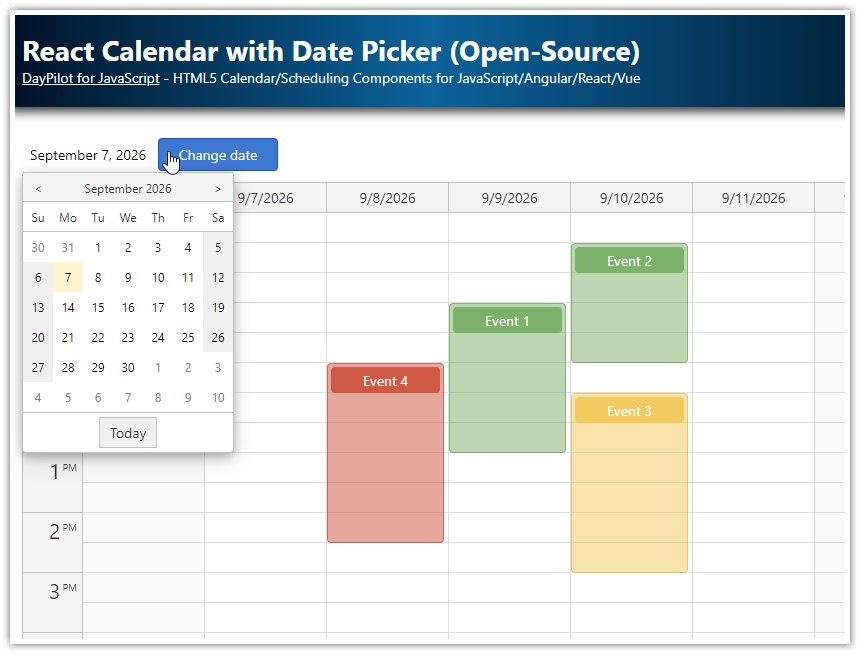
The popup lets users choose a date from the Calendar toolbar.
The popup's target identifies the label element, pattern controls its date format, and onTimeRangeSelected updates React's calendar state. The tutorial also shows how to make the date label itself clickable. Both the inline Navigator and the popup example are available with DayPilot Lite. Try the popup date picker.
Use the Selected Range in Application State
A selected week has a start and end even when the user clicked only one day. Use args.start and args.end when loading records for that period, and args.day when you need the particular day the user clicked. With free-hand selection enabled, args.days also gives the length of a dragged range. The integration examples below show how to keep the selection in React state and share event data with a Calendar.
Demos and Tutorials
Each tutorial includes a downloadable project. The edition used by the example is shown beside its link.
Inline and Popup Date Pickers
React Calendar with Day/Week/Month Views (Open-Source) · Live demo (Lite)
Switch between day, week, and month views with one event collection.React Weekly Calendar Tutorial (Open-Source) · Live demo (Lite)
Combine a weekly calendar with an inline date picker.React Calendar with Date Picker (Open-Source) · Live demo (Lite)
Open a compact date picker from a button to navigate a calendar.
Installation
DayPilot Lite
Install @daypilot/daypilot-lite-react from npm:
npm install @daypilot/daypilot-lite-reactDayPilot Pro
At npm.daypilot.org, select React and copy the installation command for daypilot-pro-react. Licensed customers can obtain their package URL in the customer area.
The examples use JavaScript/JSX and function components with React 18 or later.
Select a Date
Choose a date in the Navigator. The text below it shows the selected day.
Navigator.jsx
import {useState} from 'react';
import {DayPilotNavigator} from '@daypilot/daypilot-lite-react';

export default function Navigator() {
  const [selectedDay, setSelectedDay] = useState('2026-10-05');

  return <>
    <DayPilotNavigator
      startDate="2026-10-01"
      showMonths={2}
      skipMonths={1}
      selectMode="Day"
      selectionDay={selectedDay}
      onTimeRangeSelected={args => setSelectedDay(args.day.toString('yyyy-MM-dd'))}
    />
    <p>Selected day: {selectedDay}</p>
  </>;
}
The selected date and visible months are separate settings. startDate sets the first displayed month, showMonths sets the number of months, and skipMonths sets the navigation step. selectionDay supplies the selected date; the callback returns the clicked date in args.day.
These examples use Lite. For Pro, change the import to daypilot-pro-react.
Connect a Calendar and Highlight Busy Dates
Use one selected date to control the week shown by the Calendar, and one event collection for both components. The Navigator highlights dates with events. Select another week to change the Calendar; move an appointment to update its date and the Navigator’s busy marker.
NavigatorConnected.jsx
import {useState} from 'react';
import {DayPilotNavigator, DayPilotCalendar} from '@daypilot/daypilot-lite-react';

export default function Navigator() {
  const [selectedDay, setSelectedDay] = useState('2026-10-05');
  const [events, setEvents] = useState([
  {id: 'meeting', text: 'Meeting',
    start: '2026-10-05T10:00:00', end: '2026-10-05T12:00:00'}
]);

  function refreshBusyDates(args) {
    setEvents([...args.control.events.list]);
  }

  return <>
    <DayPilotNavigator
      startDate="2026-10-01"
      showMonths={2}
      skipMonths={1}
      selectMode="Week"
      weekStarts={1}
      selectionDay={selectedDay}
      events={events}
      onTimeRangeSelected={args => setSelectedDay(args.day.toString())}
    />
    <DayPilotCalendar
      startDate={selectedDay}
      viewType="Week"
      weekStarts={1}
      events={events}
      onEventMoved={refreshBusyDates}
      onEventResized={refreshBusyDates}
    />
  </>;
}
The Calendar moves and resizes events automatically. The callbacks here notify the second component that its busy-date data changed. They are useful because the Navigator is another consumer of the collection; the Calendar needs no callback merely to display its own edit.
Use the same weekStarts value in both components. For a monthly view, connect a Month component and set selectMode: "Month". See binding to a main control and selection modes.
Busy-day highlighting marks dates represented in the supplied data; it does not disable empty dates. In a backend application, load events for all displayed Navigator months, including visible days from adjacent months. Use visibleStart()/visibleEnd() and reload after onVisibleRangeChanged. Loading only the selected Calendar week would incorrectly make other dates look free.
Select a Custom Date Range
For a date-range picker, enable freeHandSelectionEnabled. This is a separate complete example: drag across several days to display the selected range.
NavigatorRange.jsx
import {useState} from 'react';
import {DayPilotNavigator} from '@daypilot/daypilot-lite-react';

export default function Navigator() {
  const [range, setRange] = useState('');

  return <>
    <DayPilotNavigator
      startDate="2026-10-01"
      freeHandSelectionEnabled={true}
      onTimeRangeSelected={args => setRange(
        args.start.toString('yyyy-MM-dd') + ' – ' +
        args.end.toString('yyyy-MM-dd')
      )}
    />
    <p>{range}</p>
  </>;
}
args.end is exclusive. Selecting October 12–14 therefore returns October 15 as the end. args.days gives the number of selected days. Use the range to filter application data or configure a custom-length main view.
Select Today Using the Navigator API
The select() method changes the selection, brings it into view and triggers the selection callback. This Today button therefore also updates the selected-day text.
NavigatorApi.jsx
import {useState} from 'react';
import {DayPilot, DayPilotNavigator} from '@daypilot/daypilot-lite-react';

export default function Navigator() {
  const [navigator, setNavigator] = useState(null);
  const [selectedDay, setSelectedDay] = useState('2026-10-05');

  return <>
    <button disabled={!navigator}
      onClick={() => navigator.select(DayPilot.Date.today())}>Today</button>
    <DayPilotNavigator controlRef={setNavigator}
      startDate="2026-10-01"
      showMonths={2}
      skipMonths={1}
      selectMode="Day"
      selectionDay={selectedDay}
      onTimeRangeSelected={args => setSelectedDay(args.day.toString('yyyy-MM-dd'))}
    />
    <p>Selected day: {selectedDay}</p>
  </>;
}
The wrapper manages initialization and disposal. Use controlRef to receive the JavaScript control. See select() and the Navigator API.
Use Next.js
Place the introductory component in Navigator.jsx and add 'use client'; at the top. Create a client wrapper that loads it with server rendering disabled:
NavigatorClient.jsx
'use client';

import dynamic from 'next/dynamic';

const Navigator = dynamic(() => import('./Navigator'), {ssr: false});

export default function NavigatorClient() {
  return <Navigator />;
}
Import NavigatorClient in your page and render <NavigatorClient />. The Next.js client wrapper keeps the DayPilot component in the browser. The tutorials above provide complete project setups.
Availability
Availability of this feature in DayPilot editions:
| Product | Lite | Pro |
|---|---|---|
| DayPilot for JavaScript | ||
| DayPilot for ASP.NET WebForms | ||
| DayPilot for ASP.NET MVC | ||
| DayPilot for Java |