 DayPilot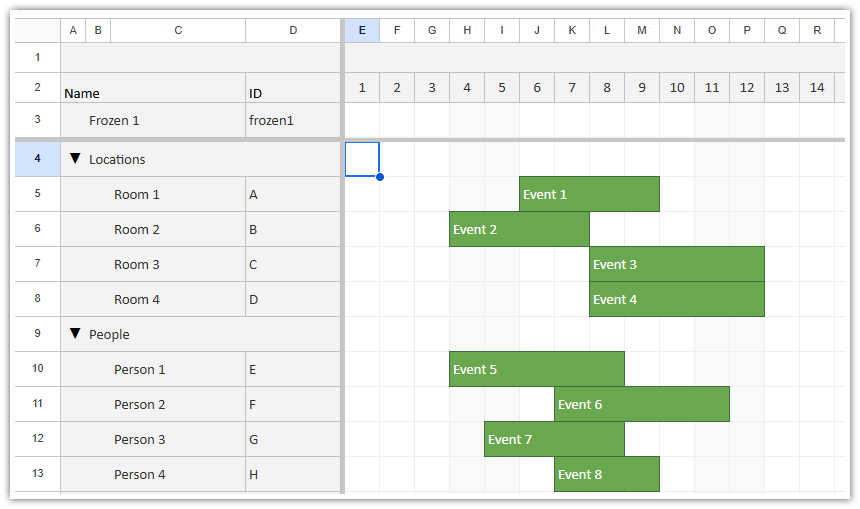
The JavaScript Scheduler component supports client-side export to an Excel spreadsheet (xlsx format).
Available since 2025.1.6418.
Live Demo
Supported Features
Customization of background and font colors (time headers, row headers, cells, events, upper-left corner)
Frozen rows
Row header columns
Custom event height
Overlapping events
Active areas that snap to grid and fill the event (e.g., event phases)
Dependencies
The Scheduler uses ExcelJS library (MIT license) to generate the Excel spreadsheet.
ExcelJS is not bundled: The reference to ExcelJS must be provided using the exceljs property of the Scheduler.
Quick Example
Configuration:
Set the ExcelJS reference using the
exceljsproperty
Export:
Call the exportAs() method to get the export object:
exportAs("xlsx")The export object supports direct download using
download("file.xlsx")or async BLOB access usingtoBlobAsync().
<script src="https://cdnjs.cloudflare.com/ajax/libs/exceljs/4.4.0/exceljs.min.js"></script>

<div id="scheduler"></div>

<button id="export">Export</button>

<script>

  const scheduler = new DayPilot.Scheduler("scheduler", {
    exceljs: ExcelJS,
    onBeforeEventExport: args => {
      args.backColor = "#fafafa";
      args.fontColor = "#333333";
      args.borderColor = "#cccccc";
    },
    // ...
  });
  scheduler.init();

  const app = {
      init() {
          this.bindEvents();
      },
      bindEvents() {
          document.getElementById('export').addEventListener('click', (ev) => {
              const options = {
                  mime: "application/octet-stream",
                  area: "full",
              };
              scheduler.exportAs("xlsx", options).download("scheduler.xlsx");
          });
      }
  };
  app.init();

</script>
Exported Area
By default, the Scheduler exports the current view. You can opt to export the whole grid or specify custom resource and date range.
Full grid export:
scheduler.exportAs("xlsx", {
  area: "full"
}).download("scheduler.xlsx");
Current viewport:
scheduler.exportAs("xlsx", {
  area: "viewport"
}).download("scheduler.xlsx");
Frozen Rows and Columns
When you export the full Scheduler grid (area: "full"), the headers will be frozen in the output XLSX file, including top-frozen rows.
For other export areas, nothing will be frozen in the output XLSX file.
Adjusting Dimensions
Excel uses its own units for column widths and row heights.
The Scheduler translates the pixel measures to the Excel units. The output should roughly correspond to the dimensions displayed in the browser.
You can also provide custom unit conversion calculations:
to better adjust the dimensions to the target environment
to scale up/down
Custom width conversion function:
scheduler.exportAs("xlsx", {
  transformWidth: width => (width - 5) / 7
}).download();
Custom height conversion function:
scheduler.exportAs("xlsx", {
  transformHeight: height => height * 0.75
}).download();
Event Appearance
The following properties can be configued using onBeforeEventRender or onBeforeEventExport:
backColorborderColorfontColor
If the text includes a line break (\n), the Scheduler will enable word wrap for the target spreadsheet cell and the line break will be exported.
The colors must be in hex format (e.g., "#ffffff").
You can set custom event height in the data source. If there are multiple events in the target line within a row (see Event Placement Strategies for an explanation), the maximum event height will be used for all events in this line.
Output
You can export the XLSX file as a Blob using the toBlobAsync() method:
const blob = await scheduler.exportAs("xlsx").toBlobAsync();You can also directly invoke the download using the download() method:
scheduler.exportAs("xlsx").download("scheduler.xlsx");The default MIME type of the output is application/vnd.openxmlformats-officedocument.spreadsheetml.sheet. If needed (e.g., in Salesforce LWC), you can set custom MIME type using the mime property:
scheduler.exportAs("xlsx", {
  mime: "application/octet-stream"
}).download();
Limitations
Spreadsheets have only a single layer and all elements needs to match the grid. That limits the Scheduler representation in the output xlsx file.
Features that rely on multiple layers and more complex layout are not supported, including:
Event boxes that are not aligned to the grid (useEventBoxes values other than
"Always").Active areas that are not aligned to the grid (see above)
Duration bar
Custom HTML
Event versions
Event stacking line height
Links
CSS (rounded corners, transparency, transformations…)
API: exportAs.
Install exceljs for these examples. Download Excel exports the full loaded schedule to schedule.xlsx using area: "full".
The framework examples use DayPilot Pro. For installation, see the Angular, React or Vue Scheduler guide.
Angular
Import ExcelJS and assign it to config.exceljs. The button method calls exportAs() on the Scheduler control obtained through @ViewChild.
import {Component, ViewChild} from "@angular/core";
import {DayPilot, DayPilotModule, DayPilotSchedulerComponent} from "daypilot-pro-angular";
import ExcelJS from "exceljs";
@Component({
  selector: "app-scheduler-example",
  standalone: true,
  imports: [DayPilotModule],
  template: `
    <button (click)="action0()">Download Excel</button>
    <daypilot-scheduler [config]="config" #scheduler></daypilot-scheduler>
  `
})
export class SchedulerExampleComponent {
  @ViewChild("scheduler") scheduler!: DayPilotSchedulerComponent;
  config: DayPilot.SchedulerConfig = {
    startDate: "2026-11-01",
    days: 30,
    scale: "Day",
    timeHeaders: [{groupBy: "Month"}, {groupBy: "Day", format: "d"}],
    resources: [{id: "A", name: "Room A"}, {id: "B", name: "Room B"}],
    events: [{id: 1, text: "Planning", resource: "A", start: "2026-11-03", end: "2026-11-06"}, {id: 2, text: "Delivery", resource: "B", start: "2026-11-08", end: "2026-11-11"}],
    exceljs: ExcelJS
  };
  async action0() {
    const dp = this.scheduler.control;
    dp.exportAs("xlsx", {area: "full"}).download("schedule.xlsx");
  }
}
React
Pass the imported library as exceljs={ExcelJS}. The button uses the control stored by controlRef to start the export.
import React, {useRef} from "react";
import {DayPilot, DayPilotScheduler} from "daypilot-pro-react";
import ExcelJS from "exceljs";
export default function SchedulerExample() {
  const scheduler = useRef(null);
  async function action0() {
    const dp = scheduler.current;
    dp.exportAs("xlsx", {area: "full"}).download("schedule.xlsx");
  }
  return <div>
    <button onClick={action0}>Download Excel</button>
    <DayPilotScheduler
      controlRef={control => { scheduler.current = control; }}
      startDate={"2026-11-01"}
      days={30}
      scale={"Day"}
      timeHeaders={[{groupBy: "Month"}, {groupBy: "Day", format: "d"}]}
      resources={[{id: "A", name: "Room A"}, {id: "B", name: "Room B"}]}
      events={[{id: 1, text: "Planning", resource: "A", start: "2026-11-03", end: "2026-11-06"}, {id: 2, text: "Delivery", resource: "B", start: "2026-11-08", end: "2026-11-11"}]}
      exceljs={ExcelJS}
    />
  </div>;
}
Vue
Bind the imported library through :exceljs. The download function accesses the export API using scheduler.value.control.
<script setup>
import {ref} from "vue";
import {DayPilot, DayPilotScheduler} from "daypilot-pro-vue";
import ExcelJS from "exceljs";
const scheduler = ref(null);
const startDate = "2026-11-01";
const days = 30;
const scale = "Day";
const timeHeaders = [{groupBy: "Month"}, {groupBy: "Day", format: "d"}];
const resources = [{id: "A", name: "Room A"}, {id: "B", name: "Room B"}];
const events = [{id: 1, text: "Planning", resource: "A", start: "2026-11-03", end: "2026-11-06"}, {id: 2, text: "Delivery", resource: "B", start: "2026-11-08", end: "2026-11-11"}];
const exceljs = ExcelJS;
async function action0() {
  const dp = scheduler.value.control;
  dp.exportAs("xlsx", {area: "full"}).download("schedule.xlsx");
}
</script>

<template>
  <div>
    <button @click="action0">Download Excel</button>
    <DayPilotScheduler ref="scheduler"
      :startDate="startDate"
      :days="days"
      :scale="scale"
      :timeHeaders="timeHeaders"
      :resources="resources"
      :events="events"
      :exceljs="exceljs"
    />
  </div>
</template>
Availability
Availability of this feature in DayPilot editions:
| Product | Lite | Pro |
|---|---|---|
| DayPilot for JavaScript | ||
| DayPilot for ASP.NET WebForms | ||
| DayPilot for ASP.NET MVC | ||
| DayPilot for Java |