 DayPilot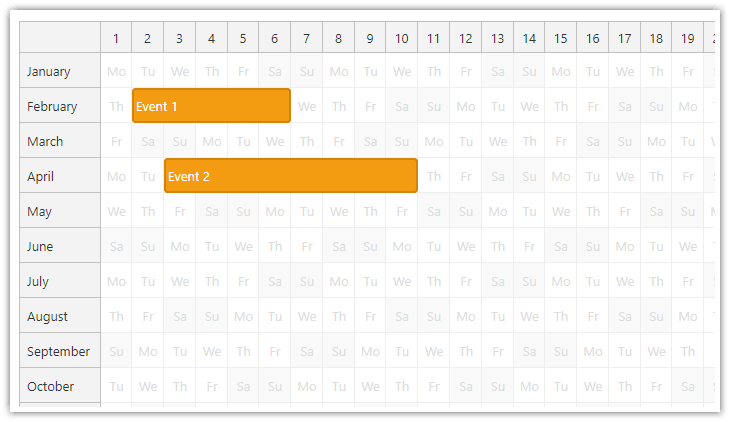
The JavaScript Scheduler component can be configured to display a yearly scheduler where each row represents one month.
Available since 2024.2.5932.
A similar yearly view with switched axes can be created using the Calendar component.
How to Create the Yearly Scheduler
In order to show months as rows, it is necessary to define 12 rows with a custom start:
for (let i = 0; i < 12; i++) {
    const month = year.addMonths(i);
    resources.push({
        name: month.toString("MMMM"),
        start: month
    });
}
Unlike the standard Resources view of the Scheduler, the row don’t use any ID.
The length of timeline (which is displayed on the horizontal axis) needs to be set to 31 days:
{
  days: 31,
  scale: "Day",
  // ...
}
The startDate needs to be set to the first day of the year. This value will be used for the time header displayed on the X axis.
{
  startDate: DayPilot.Date.today().firstDayOfYear(),
  // ...
}
You can configure the time header to display the day numbers using the timeHeaders config property:
{
  timeHeaders: [
      {groupBy: "Day", format: "d"}
  ],
  // ...
}
Some months are shorter than 31 days, so we need to shade-out the extra days in each row using onBeforeCellRender:
{
  onBeforeCellRender: args => {
      const belongsToCurrentMonth = args.cell.x + 1 === args.cell.start.getDay();

      if (!belongsToCurrentMonth) {
         args.cell.properties.backColor = "#dddddd";
      }
  },
  // ...
}
In most cases, it might be useful to set the cell width automatically so that the cell fill the available width:
{
  cellWidthSpec: "Auto",
  // ...
}
Demo
JavaScript Example
<div id="dp"></div>

<script>

    const dp = new DayPilot.Scheduler("dp", {
        days: 31,
        scale: "Day",
        timeHeaders: [
            {groupBy: "Day", format: "d"}
        ],
        cellWidthSpec: "Auto",
        onBeforeCellRender: args => {
            const belongsToCurrentMonth = args.cell.x + 1 === args.cell.start.getDay();

            if (!belongsToCurrentMonth) {
                args.cell.properties.backColor = "#dddddd";
            }
            else {
                args.cell.properties.fontColor = "#dddddd";
                args.cell.properties.text = args.cell.start.toString("ddd");
                args.cell.properties.verticalAlignment = "center";
                args.cell.properties.horizontalAlignment = "center";
            }
        },
    });
    dp.init();

    const app = {
        loadData() {
            const resources = [];

            const year = DayPilot.Date.today().firstDayOfYear();

            for (let i = 0; i < 12; i++) {
                const month = year.addMonths(i);
                resources.push({
                    name: month.toString("MMMM"),
                    start: month
                });
            }

            const events = [];

            dp.update({
                resources,
                events,
                startDate: year
            });
        },
    };
    app.loadData();

</script>
API: cellWidthSpec, onBeforeCellRender.
The framework examples display 2026 with one row per month. Gray cells mark positions beyond the end of shorter months; the callback changes their background color.
The framework examples use DayPilot Pro. For installation, see the Angular, React or Vue Scheduler guide.
Angular
import {Component} from "@angular/core";
import {DayPilot, DayPilotModule} from "daypilot-pro-angular";

@Component({
  selector: "app-scheduler-example",
  standalone: true,
  imports: [DayPilotModule],
  template: `

    <daypilot-scheduler [config]="config"></daypilot-scheduler>
  `
})
export class SchedulerExampleComponent {
  config: DayPilot.SchedulerConfig = {
    startDate: "2026-01-01",
    days: 31,
    scale: "Day",
    timeHeaders: [{groupBy: "Day", format: "d"}],
    resources: Array.from({length: 12}, (_, i) => { const start = new DayPilot.Date("2026-01-01").addMonths(i); return {name: start.toString("MMMM"), start}; }),
    events: [],
    cellWidthSpec: "Auto",
    onBeforeCellRender: args => { if (args.cell.x + 1 !== args.cell.start.getDay()) { args.cell.properties.backColor = "#dddddd"; } }
  };

}
React
import React from "react";
import {DayPilot, DayPilotScheduler} from "daypilot-pro-react";

export default function SchedulerExample() {

  return <div>

    <DayPilotScheduler
      startDate={"2026-01-01"}
      days={31}
      scale={"Day"}
      timeHeaders={[{groupBy: "Day", format: "d"}]}
      resources={Array.from({length: 12}, (_, i) => { const start = new DayPilot.Date("2026-01-01").addMonths(i); return {name: start.toString("MMMM"), start}; })}
      events={[]}
      cellWidthSpec={"Auto"}
      onBeforeCellRender={args => { if (args.cell.x + 1 !== args.cell.start.getDay()) { args.cell.properties.backColor = "#dddddd"; } }}
    />
  </div>;
}
Vue
<script setup>
import {DayPilot, DayPilotScheduler} from "daypilot-pro-vue";

const startDate = "2026-01-01";
const days = 31;
const scale = "Day";
const timeHeaders = [{groupBy: "Day", format: "d"}];
const resources = Array.from({length: 12}, (_, i) => { const start = new DayPilot.Date("2026-01-01").addMonths(i); return {name: start.toString("MMMM"), start}; });
const events = [];
const cellWidthSpec = "Auto";
const onBeforeCellRender = args => { if (args.cell.x + 1 !== args.cell.start.getDay()) { args.cell.properties.backColor = "#dddddd"; } };

</script>

<template>
  <div>

    <DayPilotScheduler
      :startDate="startDate"
      :days="days"
      :scale="scale"
      :timeHeaders="timeHeaders"
      :resources="resources"
      :events="events"
      :cellWidthSpec="cellWidthSpec"
      :onBeforeCellRender="onBeforeCellRender"
    />
  </div>
</template>
Availability
Availability of this feature in DayPilot editions:
| Product | Lite | Pro |
|---|---|---|
| DayPilot for JavaScript | ||
| DayPilot for ASP.NET WebForms | ||
| DayPilot for ASP.NET MVC | ||
| DayPilot for Java |