 DayPilot
Using the cell customization event, you can insert active areas into cells. The active areas are rectangular areas with position specified using distance from cell borders (left, right, top, bottom) or using start/end time. You can use them to display icons, custom HTML, hover hints and to provide access to cell context menu.
Display modes
Always visible
Visible on cell hover
Positioning
Combination of left, right, top, bottom, width, height CSS styles (in pixels)
Left, right, and width pixel position can be replaced by start/end specified using date/time.
Content
HTML
Font icon
Background color/image
Inline CSS styles
Custom CSS class
Actions
No action
Hover: bubble, context menu
Click: context menu, custom event handler
JavaScript
Adding a striped overlay to past cells

onBeforeCellRender: (args) => {
  if (args.cell.start < DayPilot.Date.today()) {
      args.cell.areas = [
          { left: 0, right: 0, top: 0, bottom: 0, style: "background-image: linear-gradient(135deg, #ddd 10%, transparent 10%, transparent 50%, #ddd 50%, #ddd 60%, transparent 60%, transparent); background-size: 20px 20px;" }
      ];
  }
};
Tutorials
How to Add Excel-Like Notes to JavaScript Scheduler Grid Cells
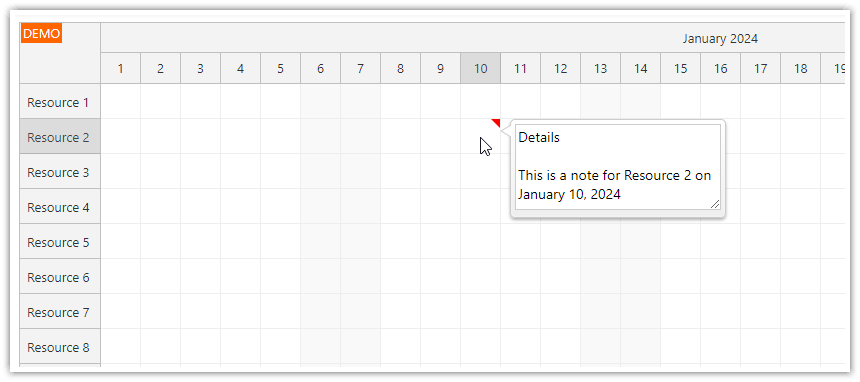
Learn how to add notes to the cells of a JavaScript Scheduler component. Notes are indicated by a red triangle in the upper-right corner and become visible upon hovering over a cell.
API: onBeforeCellRender.
The examples add an information area to each cell using onBeforeCellRender. The area's click handler captures that cell's date and resource and displays them in a dialog, escaping the resource text.
The framework examples use DayPilot Pro. For installation, see the Angular, React or Vue Scheduler guide.
Angular
import {Component} from "@angular/core";
import {DayPilot, DayPilotModule} from "daypilot-pro-angular";

@Component({
  selector: "app-scheduler-example",
  standalone: true,
  imports: [DayPilotModule],
  template: `

    <daypilot-scheduler [config]="config"></daypilot-scheduler>
  `
})
export class SchedulerExampleComponent {
  config: DayPilot.SchedulerConfig = {
    startDate: "2026-11-01",
    days: 30,
    scale: "Day",
    timeHeaders: [{groupBy: "Month"}, {groupBy: "Day", format: "d"}],
    resources: [{id: "A", name: "Room A"}, {id: "B", name: "Room B"}],
    events: [{id: 1, text: "Planning", resource: "A", start: "2026-11-03", end: "2026-11-06"}, {id: 2, text: "Delivery", resource: "B", start: "2026-11-08", end: "2026-11-11"}],
    onBeforeCellRender: args => { args.cell.properties.areas = [{right: 2, top: 2, width: 16, height: 16, text: "i", action: "None", onClick: () => { DayPilot.Modal.alert(args.cell.start.toString("d MMM yyyy") + " / " + DayPilot.Util.escapeHtml(String(args.cell.resource))); }}]; }
  };

}
React
import React from "react";
import {DayPilot, DayPilotScheduler} from "daypilot-pro-react";

export default function SchedulerExample() {

  return <div>

    <DayPilotScheduler
      startDate={"2026-11-01"}
      days={30}
      scale={"Day"}
      timeHeaders={[{groupBy: "Month"}, {groupBy: "Day", format: "d"}]}
      resources={[{id: "A", name: "Room A"}, {id: "B", name: "Room B"}]}
      events={[{id: 1, text: "Planning", resource: "A", start: "2026-11-03", end: "2026-11-06"}, {id: 2, text: "Delivery", resource: "B", start: "2026-11-08", end: "2026-11-11"}]}
      onBeforeCellRender={args => { args.cell.properties.areas = [{right: 2, top: 2, width: 16, height: 16, text: "i", action: "None", onClick: () => { DayPilot.Modal.alert(args.cell.start.toString("d MMM yyyy") + " / " + DayPilot.Util.escapeHtml(String(args.cell.resource))); }}]; }}
    />
  </div>;
}
Vue
<script setup>
import {DayPilot, DayPilotScheduler} from "daypilot-pro-vue";

const startDate = "2026-11-01";
const days = 30;
const scale = "Day";
const timeHeaders = [{groupBy: "Month"}, {groupBy: "Day", format: "d"}];
const resources = [{id: "A", name: "Room A"}, {id: "B", name: "Room B"}];
const events = [{id: 1, text: "Planning", resource: "A", start: "2026-11-03", end: "2026-11-06"}, {id: 2, text: "Delivery", resource: "B", start: "2026-11-08", end: "2026-11-11"}];
const onBeforeCellRender = args => { args.cell.properties.areas = [{right: 2, top: 2, width: 16, height: 16, text: "i", action: "None", onClick: () => { DayPilot.Modal.alert(args.cell.start.toString("d MMM yyyy") + " / " + DayPilot.Util.escapeHtml(String(args.cell.resource))); }}]; };

</script>

<template>
  <div>

    <DayPilotScheduler
      :startDate="startDate"
      :days="days"
      :scale="scale"
      :timeHeaders="timeHeaders"
      :resources="resources"
      :events="events"
      :onBeforeCellRender="onBeforeCellRender"
    />
  </div>
</template>
Availability
Availability of this feature in DayPilot editions:
| Product | Lite | Pro |
|---|---|---|
| DayPilot for JavaScript | ||
| DayPilot for ASP.NET WebForms | ||
| DayPilot for ASP.NET MVC | ||
| DayPilot for Java |