 DayPilot
A bubble can be displayed on grid cell hover.

JavaScript
<div id="scheduler"></div>

<script>
  const scheduler = new DayPilot.Scheduler("scheduler", {
    cellBubble: new DayPilot.Bubble({
      onLoad: (args) => {
        const cell = args.source;
        args.html = cell.start.toString("d MMMM yyyy");
      }
    }),
    // ...
  });
  scheduler.init();
</script>
Tutorials
How to Add Excel-Like Notes to JavaScript Scheduler Grid Cells
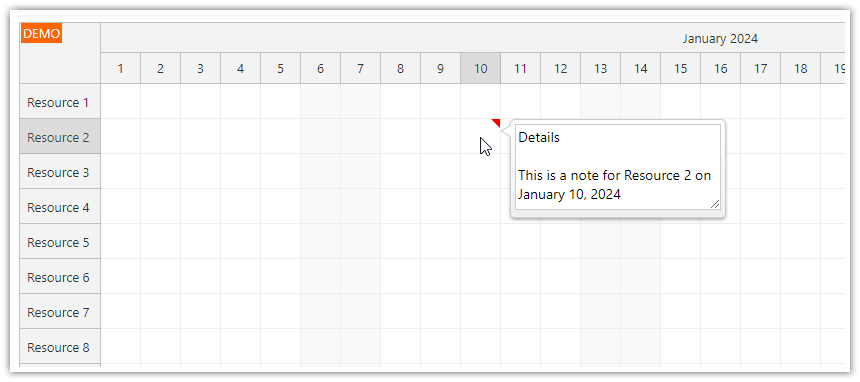
This tutorial shows how to customize the cell bubble content to include an editable text area with cell notes.
API: cellBubble.
The bubble examples show the hovered cell's date and resource. onLoad receives the cell as args.source; the resource value is escaped before being inserted into the bubble HTML.
The framework examples use DayPilot Pro. For installation, see the Angular, React or Vue Scheduler guide.
Angular
import {Component} from "@angular/core";
import {DayPilot, DayPilotModule} from "daypilot-pro-angular";

@Component({
  selector: "app-scheduler-example",
  standalone: true,
  imports: [DayPilotModule],
  template: `

    <daypilot-scheduler [config]="config"></daypilot-scheduler>
  `
})
export class SchedulerExampleComponent {
  config: DayPilot.SchedulerConfig = {
    startDate: "2026-11-01",
    days: 30,
    scale: "Day",
    timeHeaders: [{groupBy: "Month"}, {groupBy: "Day", format: "d"}],
    resources: [{id: "A", name: "Room A"}, {id: "B", name: "Room B"}],
    events: [{id: 1, text: "Planning", resource: "A", start: "2026-11-03", end: "2026-11-06"}, {id: 2, text: "Delivery", resource: "B", start: "2026-11-08", end: "2026-11-11"}],
    cellBubble: new DayPilot.Bubble({onLoad: args => { args.html = args.source.start.toString("d MMM yyyy") + " / " + DayPilot.Util.escapeHtml(String(args.source.resource)); }})
  };

}
React
import React from "react";
import {DayPilot, DayPilotScheduler} from "daypilot-pro-react";

export default function SchedulerExample() {

  return <div>

    <DayPilotScheduler
      startDate={"2026-11-01"}
      days={30}
      scale={"Day"}
      timeHeaders={[{groupBy: "Month"}, {groupBy: "Day", format: "d"}]}
      resources={[{id: "A", name: "Room A"}, {id: "B", name: "Room B"}]}
      events={[{id: 1, text: "Planning", resource: "A", start: "2026-11-03", end: "2026-11-06"}, {id: 2, text: "Delivery", resource: "B", start: "2026-11-08", end: "2026-11-11"}]}
      cellBubble={new DayPilot.Bubble({onLoad: args => { args.html = args.source.start.toString("d MMM yyyy") + " / " + DayPilot.Util.escapeHtml(String(args.source.resource)); }})}
    />
  </div>;
}
Vue
<script setup>
import {DayPilot, DayPilotScheduler} from "daypilot-pro-vue";

const startDate = "2026-11-01";
const days = 30;
const scale = "Day";
const timeHeaders = [{groupBy: "Month"}, {groupBy: "Day", format: "d"}];
const resources = [{id: "A", name: "Room A"}, {id: "B", name: "Room B"}];
const events = [{id: 1, text: "Planning", resource: "A", start: "2026-11-03", end: "2026-11-06"}, {id: 2, text: "Delivery", resource: "B", start: "2026-11-08", end: "2026-11-11"}];
const cellBubble = new DayPilot.Bubble({onLoad: args => { args.html = args.source.start.toString("d MMM yyyy") + " / " + DayPilot.Util.escapeHtml(String(args.source.resource)); }});

</script>

<template>
  <div>

    <DayPilotScheduler
      :startDate="startDate"
      :days="days"
      :scale="scale"
      :timeHeaders="timeHeaders"
      :resources="resources"
      :events="events"
      :cellBubble="cellBubble"
    />
  </div>
</template>
ASP.NET WebForms
<DayPilot:DayPilotScheduler runat="server" id="DayPilotScheduler1"
  ...
  CellBubbleID = "DayPilotBubble1"
/>

<DayPilot:DayPilotBubble ID="DayPilotBubble1" runat="server"
  CssOnly="true"
  CssClassPrefix="bubble_default"
/>
By default, the Bubble HTML content is determined by calling a server-side event:
RenderCellBubble
The HTML can be set by changing e.InnerHTML:
e.InnerHTML = "Event Details";
You can one Bubble control for several controls. The ID of the source control is stored in e.SourceUniqueID property:
e.SourceUniqueID
Availability
Availability of this feature in DayPilot editions:
| Product | Lite | Pro |
|---|---|---|
| DayPilot for JavaScript | ||
| DayPilot for ASP.NET WebForms | ||
| DayPilot for ASP.NET MVC | ||
| DayPilot for Java |