 DayPilot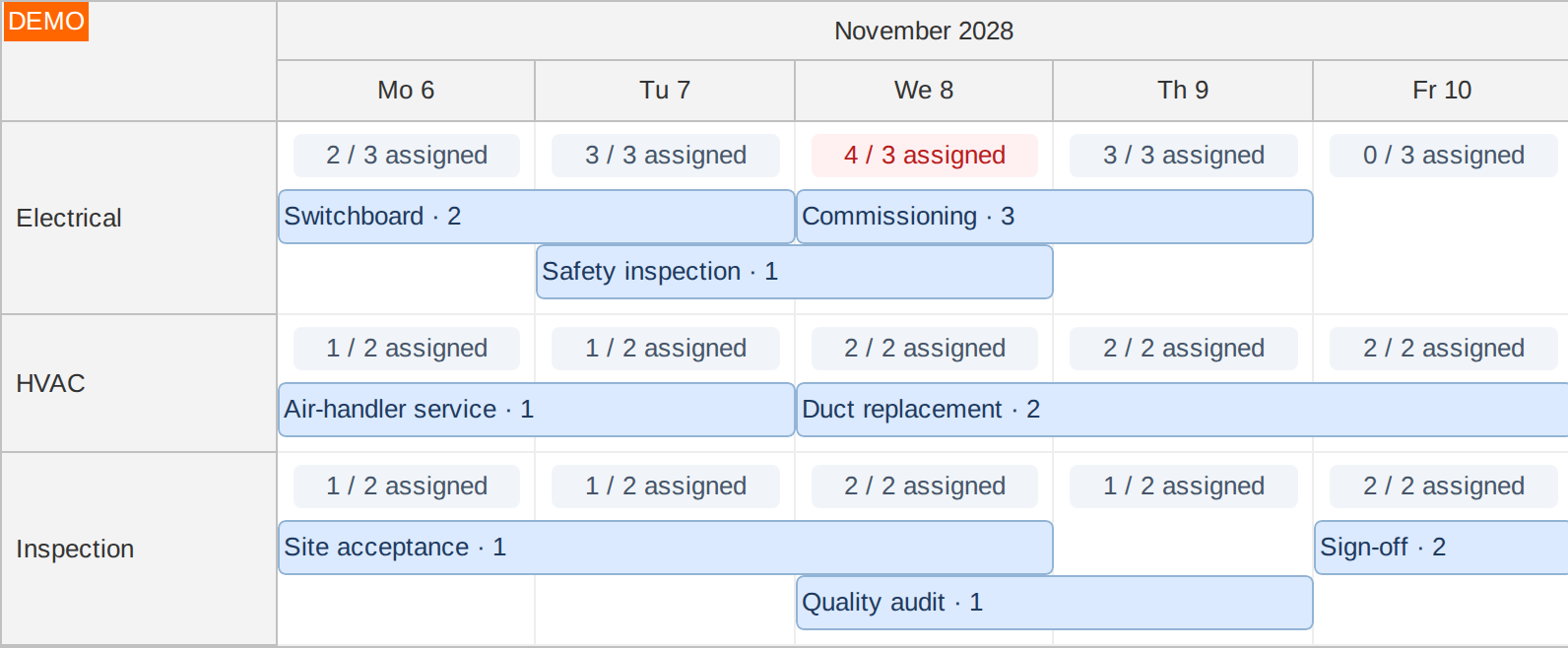
The appearance of the JavaScript Scheduler grid cells can be customized using onBeforeCellRender event handler.
The opening example compares technician demand from the visible jobs with each team's capacity. Electrical needs four technicians on Wednesday but has three, so its label is red. See Resource Utilization for the calculation and event-driven updates.
JavaScript Scheduler
The onBeforeCellRender event is called before a cell is rendered for the first time. You can use the event handler to customize the cell appearance (background color, HTML, ...) and behavior (add active areas, set disabled status, ...).
Cell Rendering
Cells are only rendered for the current viewport. Additional cells will be rendered as the user scrolls to new areas.
Rendered cells remain in the DOM, until the DOM cache is full. The DOM cache is enabled by default (cellSweeping property) and the cache size is set to 1000 cells (cellSweepingCacheSize).
All cells in a row are re-rendered when any event in that row gets changed (added, removed, updated).
Scrolling Performance
The onBeforeCellRender event is called many times during scrolling and it is very sensitive to ineffective code. See more in Scrolling Performance.
There is a configurable delay before the cells are rendered during scrolling (scrollDelayCells). By default, the cells are rendered synchronously (the default value is 0). This provides great real-time feedback during scrolling but it may slow down the scrolling if the onBeforeCellRender code is heavy.
Properties Caching
The cell properties you set using onBeforeCellRender are cached until the next update() call. Please note that this cache holds the onBeforeCellRender results (it means onBeforeCellRender will not be called again for this cell) and it is different from the DOM cache mentioned above in the "Cell Rendering" section.
If the cell status depends on the events (e.g. when displaying resource utilization) you will need to turn the caching off using beforeCellRenderCaching. This will make sure that onBeforeCellRender will be called every time the cell is rendered.
See also the JavaScript Scheduler: Displaying Group Availability tutorial for an example.
Demo
See Also
Examples
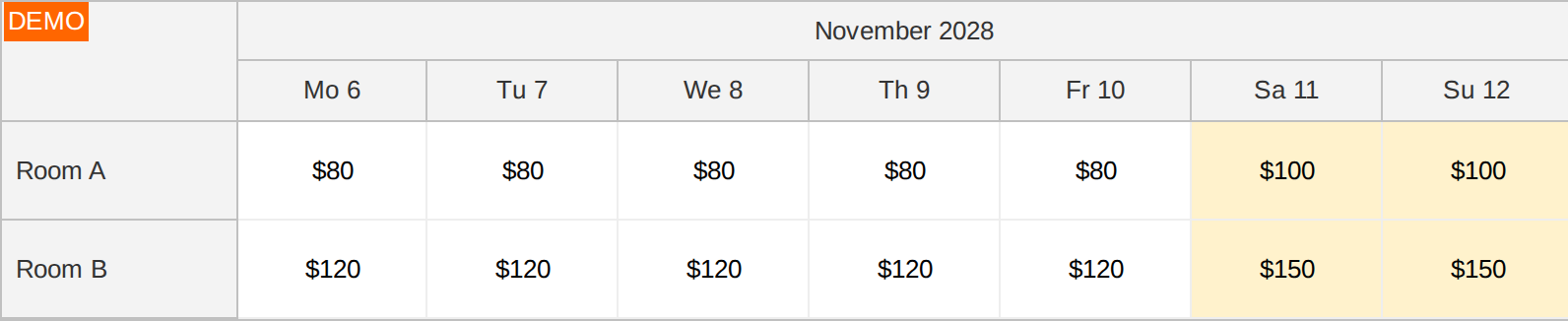
Cell content can display a daily price for each resource. This example centers the dollar amounts and uses higher weekend rates.
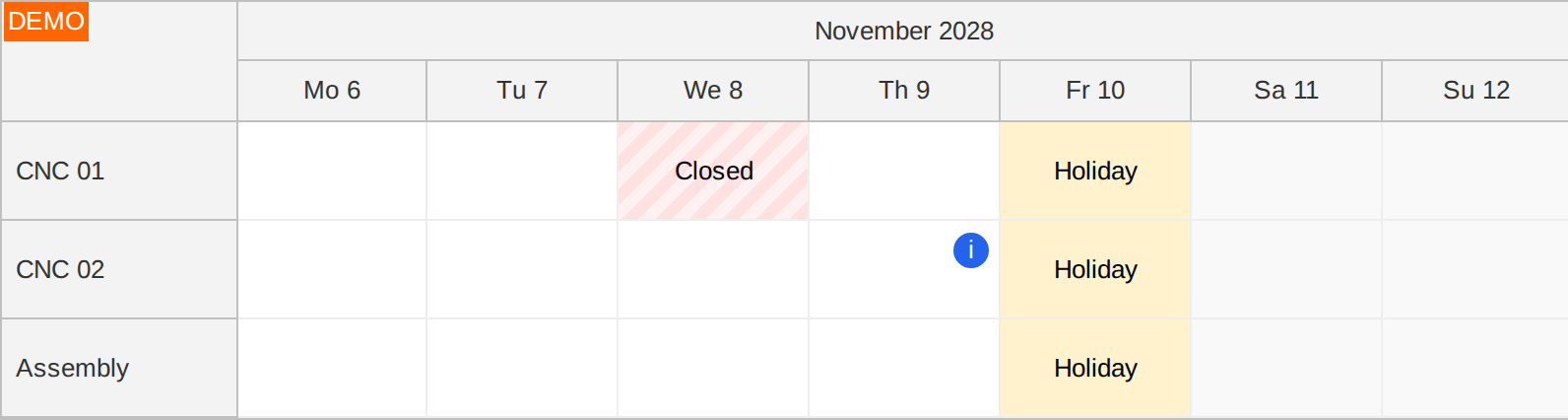
Cell backgrounds, labels and active areas can also mark equipment downtime, holidays and notes. Here, the striped CNC 01 cell is disabled for maintenance, the blue marker identifies a calibration note, and the plant holiday changes appearance without disabling scheduling.
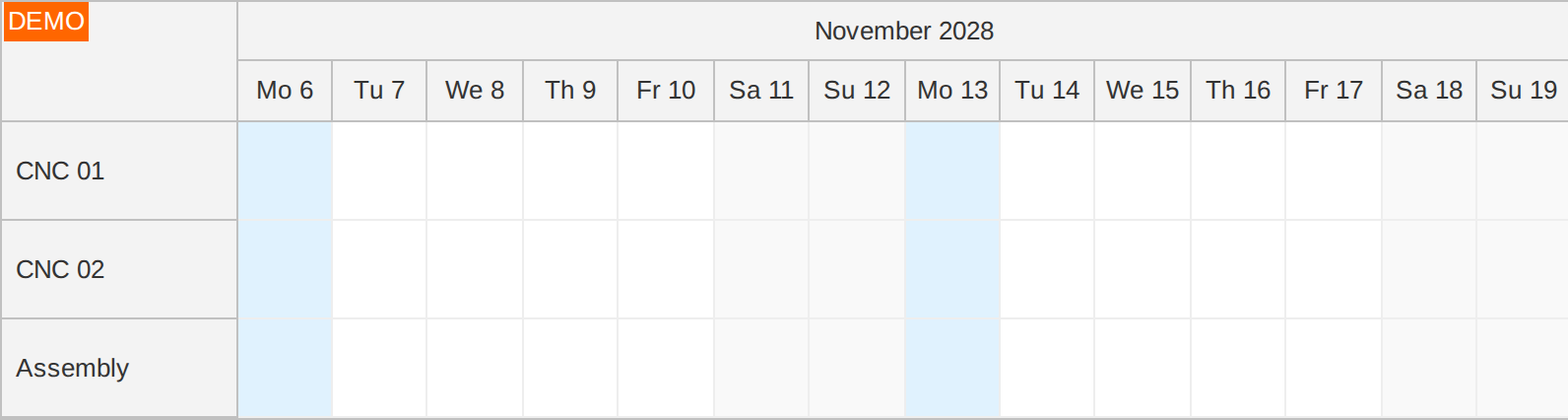
Adding a custom CSS class to Monday cells:
dp.onBeforeCellRender = (args) => {
  if (args.cell.start.getDayOfWeek() === 1) {
    args.cell.properties.cssClass = "monday";
  }
};
Add this rule to the page's global stylesheet:
.scheduler_default_main .scheduler_default_cell.monday {
  background-color: #e0f2fe;
}
Highlighting Saturday:
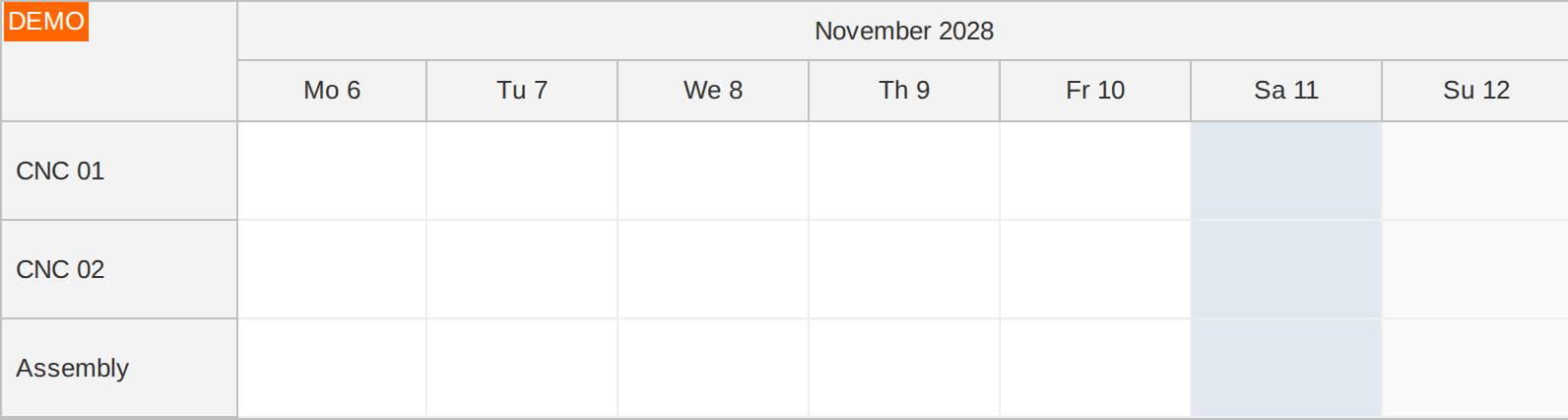
dp.onBeforeCellRender = (args) => {
  if (args.cell.start.getDayOfWeek() === 6) {
    args.cell.properties.backColor = "#e2e8f0";
  }
};
Highlighting today (November 9, 2028 in this illustration):
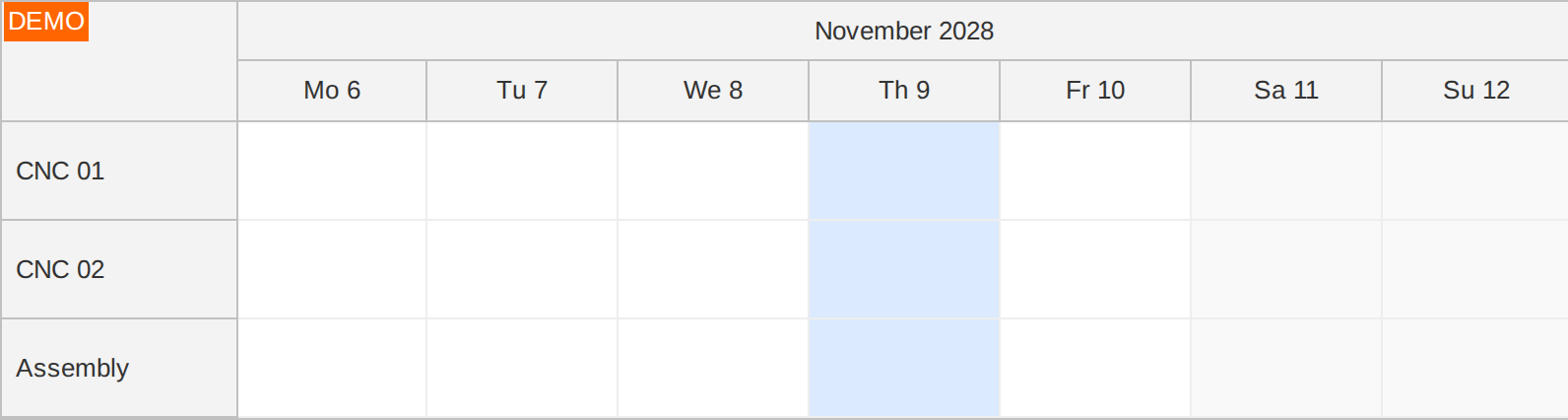
dp.onBeforeCellRender = (args) => {
  const today = DayPilot.Date.today();
  if (args.cell.start <= today && today < args.cell.end) {
    args.cell.properties.backColor = "#dbeafe";
  }
};
Custom business hours for Assembly (resource "C", from 10 am to 3 pm). CNC 01 and CNC 02 use the normal 8 am to 6 pm window. White cells show working time; gray cells show non-working time:
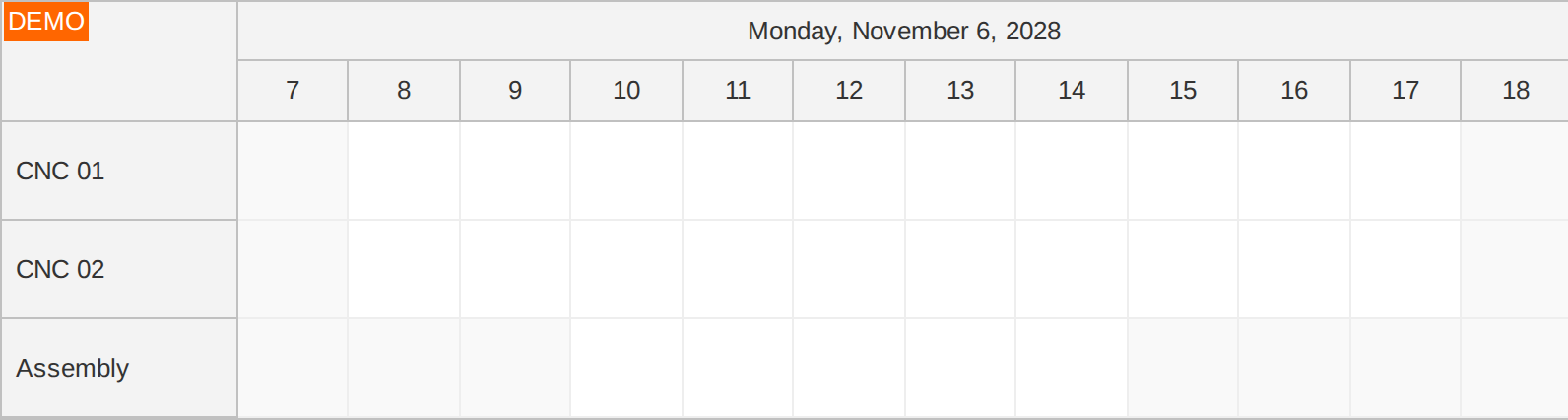
dp.businessBeginsHour = 8;
dp.businessEndsHour = 18;
dp.onBeforeCellRender = (args) => {
  if (args.cell.resource === "C") {
    const hour = args.cell.start.getHours();
    args.cell.properties.business = hour >= 10 && hour < 15;
  }
};
Tutorials
API: onBeforeCellRender.
The framework examples color Saturday and Sunday cells in onBeforeCellRender. This only changes their appearance; it does not disable scheduling on those dates.
The framework examples use DayPilot Pro. For installation, see the Angular, React or Vue Scheduler guide.
Angular
import {Component} from "@angular/core";
import {DayPilot, DayPilotModule} from "daypilot-pro-angular";

@Component({
  selector: "app-scheduler-example",
  standalone: true,
  imports: [DayPilotModule],
  template: `

    <daypilot-scheduler [config]="config"></daypilot-scheduler>
  `
})
export class SchedulerExampleComponent {
  config: DayPilot.SchedulerConfig = {
    startDate: "2026-11-01",
    days: 30,
    scale: "Day",
    timeHeaders: [{groupBy: "Month"}, {groupBy: "Day", format: "d"}],
    resources: [{id: "A", name: "Room A"}, {id: "B", name: "Room B"}],
    events: [{id: 1, text: "Planning", resource: "A", start: "2026-11-03", end: "2026-11-06"}, {id: 2, text: "Delivery", resource: "B", start: "2026-11-08", end: "2026-11-11"}],
    onBeforeCellRender: args => {
      const day = args.cell.start.getDayOfWeek();
      if (day === 0 || day === 6) { args.cell.properties.backColor = "#fff2cc"; }
    }
  };

}
Angular Tutorials
React
import React from "react";
import {DayPilot, DayPilotScheduler} from "daypilot-pro-react";

export default function SchedulerExample() {

  return <div>

    <DayPilotScheduler
      startDate={"2026-11-01"}
      days={30}
      scale={"Day"}
      timeHeaders={[{groupBy: "Month"}, {groupBy: "Day", format: "d"}]}
      resources={[{id: "A", name: "Room A"}, {id: "B", name: "Room B"}]}
      events={[{id: 1, text: "Planning", resource: "A", start: "2026-11-03", end: "2026-11-06"}, {id: 2, text: "Delivery", resource: "B", start: "2026-11-08", end: "2026-11-11"}]}
      onBeforeCellRender={args => {
        const day = args.cell.start.getDayOfWeek();
        if (day === 0 || day === 6) { args.cell.properties.backColor = "#fff2cc"; }
      }}
    />
  </div>;
}
React Tutorials
Vue
<script setup>
import {DayPilot, DayPilotScheduler} from "daypilot-pro-vue";

const startDate = "2026-11-01";
const days = 30;
const scale = "Day";
const timeHeaders = [{groupBy: "Month"}, {groupBy: "Day", format: "d"}];
const resources = [{id: "A", name: "Room A"}, {id: "B", name: "Room B"}];
const events = [{id: 1, text: "Planning", resource: "A", start: "2026-11-03", end: "2026-11-06"}, {id: 2, text: "Delivery", resource: "B", start: "2026-11-08", end: "2026-11-11"}];
const onBeforeCellRender = args => {
  const day = args.cell.start.getDayOfWeek();
  if (day === 0 || day === 6) { args.cell.properties.backColor = "#fff2cc"; }
};

</script>

<template>
  <div>

    <DayPilotScheduler
      :startDate="startDate"
      :days="days"
      :scale="scale"
      :timeHeaders="timeHeaders"
      :resources="resources"
      :events="events"
      :onBeforeCellRender="onBeforeCellRender"
    />
  </div>
</template>
Vue Scheduler Tutorials
ASP.NET WebForms
Properties supported in BeforeCellRender:
e.BackgroundImage
e.BackgroundRepeat
e.BackgroundColor
e.IsBusiness
e.CssClass
e.Disabled
e.Html
1. Changing IsBusiness Status
You can change the IsBusiness status using e.IsBusiness property. The cells will automatically use the color specified for business cell (BackColor) or non-business cells (NonBusinessBackColor).
Example
protected void DayPilotScheduler1_BeforeCellRender(object sender, DayPilot.Web.Ui.Events.BeforeCellRenderEventArgs e)
{
  if (e.Start.Hour == 13)
  {
    e.IsBusiness = false;
  }
}
2. Changing the Color
You can also change the cell color directly using e.BackgroundColor.
Example
protected void DayPilotScheduler1_BeforeCellRender(object sender, DayPilot.Web.Ui.Events.BeforeCellRenderEventArgs e)
{
  if (e.ResourceId == "A")
  {
    e.BackgroundColor = "red";
  }
}
ASP.NET MVC
protected override void  OnBeforeCellRender(BeforeCellRenderArgs e)
{

  // highlight parent resource cells
  if (Resources.FindById(e.ResourceId).Children.Count > 0)
  {
    e.BackgroundColor = "white";
  }

  // highlight first day of month
  if (e.Start.Day == 1)
  {
      e.CssClass = "red";
  }
}
Availability
Availability of this feature in DayPilot editions:
| Product | Lite | Pro |
|---|---|---|
| DayPilot for JavaScript | ||
| DayPilot for ASP.NET WebForms | ||
| DayPilot for ASP.NET MVC | ||
| DayPilot for Java |