 DayPilot
The Scheduler events can be customized using the onBeforeEventRender event handler. This event handler is called once for each event in the data set.
You can customize the following properties:
text (HTML-encoded)
raw HTML
CSS class
background color
text color
duration bar visibility
color of the duration bar
icons
You can also customize the behavior:
disable drag and drop (resizing, moving in specific direction)
disable click event
event-specific context menu
static bubble content
event-specific bubble object (with different bubble behavior and/or appearance)
The full list of customizable event properties is listed in the event data object format description in the API docs:
Example: Custom CSS Class
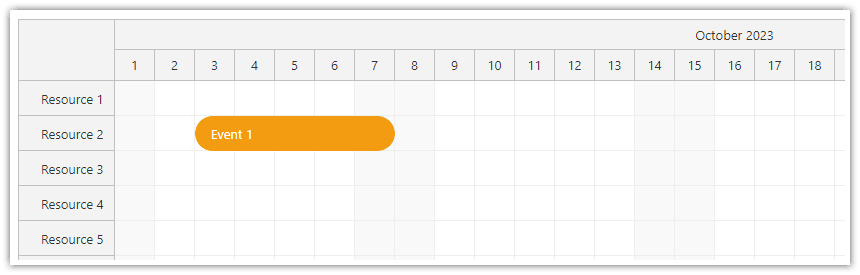
The onBeforeEventRender event handlers sets a custom CSS class:
onBeforeEventRender: args => {
  args.data.cssClass = "rounded-event";
}
This CSS overrides selected styles of the default theme (scheduler_default). It sets border radius, adds padding for the event content and hides the duration bar.
.rounded-event {
  border-radius: 20px;
}
.rounded-event .scheduler_default_event_inner {
  border-radius: 20px;
  padding: 15px;
  background: #f39c12;
  color: white;
  border: 1px solid #f39c12;
}
.rounded-event .scheduler_default_event_bar {
  display: none;
}
Example: Custom Event Content (Raw HTML)
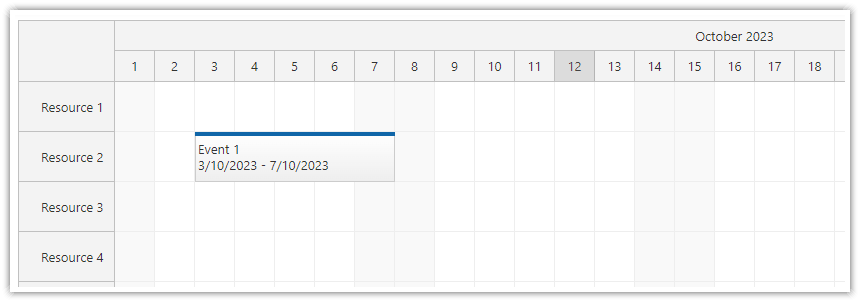
This example uses the following settings:
It sets a global custom event height.
It configures the end date spec mode to 'date-only’.
It defines custom event content as raw HTML, using the
onBeforeEventRenderevent.
Please note that if you insert the value from args.data.text into the HTML, it must be encoded to protect your application against XSS attacks.
eventHeight: 50,
eventEndSpec: "Date",
onBeforeEventRender: args => {
  const text = DayPilot.Util.escapeHtml(args.data.text);
  const start = new DayPilot.Date(args.data.start).toString("d/M/yyyy");
  const end = new DayPilot.Date(args.data.end).toString("d/M/yyyy");
  args.data.html = `${text}<br/>${start} - ${end}`;
},
Example: Event Types
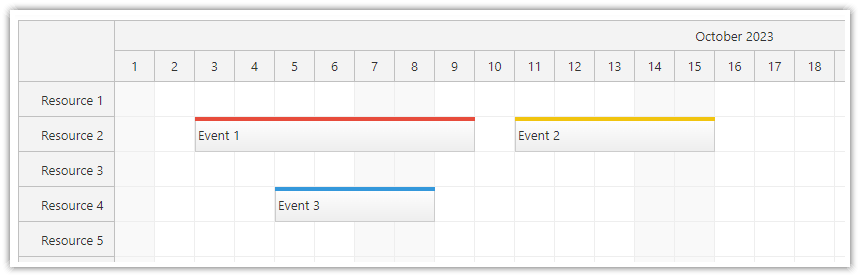
The appearance of an event can be customized based on its type or other properties.
In this example, the event type is stored within the custom type property of the tags object. The onBeforeEventRender event specifies a unique duration bar color value (barColor) for each event type.
onBeforeEventRender: args => {
  switch (args.data.tags.type) {
    case "important":
      args.data.barColor = "#e74c3c";
      break;
    case "business":
      args.data.barColor = "#3498db";
      break;
    case "personal":
      args.data.barColor = "#2ecc71";
      break;
    case "vacation":
      args.data.barColor = "#f1c40f";
      break;
  }
}
Event data:
const events = [
  {
    id: 1,
    start: "2023-10-03",
    end: "2023-10-10",
    resource: "R2",
    text: "Event 1",
    tags: {
      type: "important"
    }
  },
  {
    id: 2,
    start: "2023-10-11",
    end: "2023-10-16",
    resource: "R2",
    text: "Event 2",
    tags: {
      type: "vacation"
    }
  },
  {
    id: 3,
    start: "2023-10-05",
    end: "2023-10-09",
    resource: "R4",
    text: "Event 3",
    tags: {
      type: "business"
    }
  },
];
dp.update({events});
Example: Event Icons
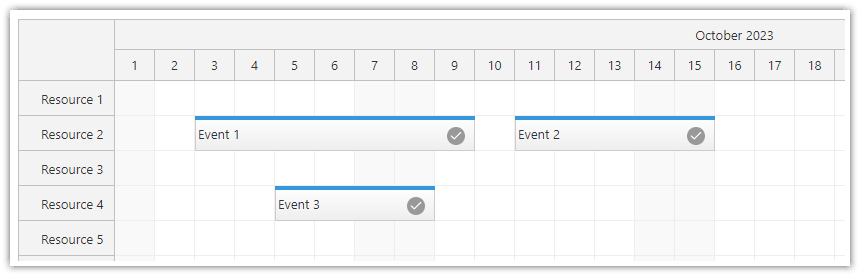
In this example, onBeforeEventRender is used to change the event bar color to light blue and to add a checkmark SVG icon to the event through an active area.
Active areas can be used to insert special elements (such as text, icons, images) and to define specific behaviors for these elements, including context menus, drag handles, popup details, edit dialogs, and more.
onBeforeEventRender: args => {
  args.data.barColor = "#3498db";
  args.data.areas = [
    {
      right: 10,
      top: "calc(50% - 7px)",
      width: 18,
      height: 18,
      symbol: "icons/daypilot.svg#checkmark-2",
      backColor: "#999999",
      fontColor: "#ffffff",
      padding: 2,
      style: "border-radius: 50%"
    }
  ];
}
Example: Pop-Up Bubble with Event Details
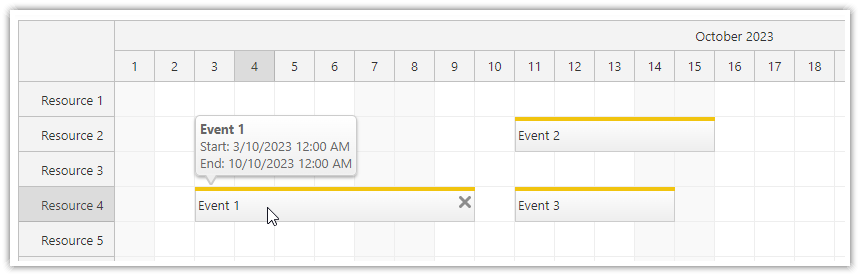
This example sets static content for an event bubble in the onBeforeEventRender event handler. If the bubbleHtml property is specified, the bubble will appear above the event when hovered over.
onBeforeEventRender: args => {
  args.data.barColor = "#f1c40f";

  const text = DayPilot.Util.escapeHtml(args.data.text);
  const start = new DayPilot.Date(args.data.start).toString("d/M/yyyy h:mm tt");
  const end = new DayPilot.Date(args.data.end).toString("d/M/yyyy h:mm tt");

  args.data.bubbleHtml = `<b>${text}</b><br/>Start: ${start}<br/>End: ${end}`;
}
Tutorials
List of Common Appearance Properties
For a list of all event properties, please see DayPilot.Event.data in the API documentation.
text- event text (will be HTML-encoded automatically, see XSS protection)html- event HTML (if specified, it is used instead of the text)barColor- CSS color of the duration barbarBackColor- CSS color of the duration bar backgroundbarImageUrl- image that will be used for the duration barbarHidden- visibility of the duration/progress barbackColor- CSS color of the event backgroundcssClass- event CSS classbackImage- event background imagebackRepeat- event background repeat stylefontColor- event font color
List of Common Behavior Properties
For a list of all event properties, please see DayPilot.Event.data in the API documentation.
areas- active areastoolTip- event tool tipbubbleHtml- event bubble HTML (the bubble content will not be loaded from the server if the BubbleHtml is set)contextMenu- event-specific context menuclickDisabled- if set to true, disables event clickingresizeDisabled- if set to true, disables event resizingmoveDisabled- if set to true, disables event movingmoveVDisabled- disables moving in vertical direction (changing a resource)moveHDisabled- disables moving in horizontal direction (changing date/time)rightClickDisabled- if set to true, disables event right clickingdoubleClickDisabled- if set to true, disables event double clicking
Accessing Event Data
The args.data object holds a shallow copy of the data object from events.list. You should store custom event properties in tags field of the data object (to prevent name collisions).
dp.events.list = [
  {
    start: "2025-03-15T00:00:00",
    end: "2025-03-17T00:00:00",
    id: "1",
    text: "Event 1",
    tags: { detail: "Detailed event description", type: "important" }
  }
];

dp.onBeforeEventRender = function(args) {
  args.data.cssClass = "test";
  args.data.html = args.data.text + "<br/>" + args.data.tags.detail;
  if (args.data.tags.type === "important") {
    args.data.barColor = "red";
  }
};
See also DayPilot.Scheduler.onBeforeEventRender.
Vue Scheduler
In the Vue Scheduler, it is possible to use Vue templates to specify the event content in addition to the onBeforeEventRender event handler.
<DayPilotScheduler :events="events" :resources="resources">
  <template #event="{ event }">
    <div class="event-text">{{ event.text() }}</div>
  </template>
</DayPilotScheduler>
See also:
ASP.NET WebForms
Appearance properties:
Html - event HTML
DurationBarColor - CSS color of the duration bar
DurationBarBackColor - CSS color of the duration bar background
DurationBarImageUrl - image that will be used for the duration bar
DurationBarVisible - whether the duration/progress bar should be visible
BackgroundColor - CSS color of the event background
CssClass - event CSS class
BackgroundImage - event background image
BackgroundRepeat - event background repeat style
Behavior properties:
Areas - active areas
ToolTip - event tool tip
BubbleHtml - event bubble HTML (the bubble content will not be loaded from the server if the BubbleHtml is set)
ContextMenuClientName - event-specific context menu
EventClickEnabled - if set to false, disables event clicking
EventResizeEnabled - if set to false, disables event resizing
EventMoveEnabled - if set to false, disables event moving
EventMoveVerticalEnabled
EventMoveHorizontalEnabled
EventRightClickEnabled - if set to false, disables event right clicking
EventDoubleClickEnabled - if set to false, disables event double clicking
All Event*Enabled properties can only disable an option that is globally enabled.
Accessing event data object
You can access the data source item using e.DataItem property.
protected void DayPilotScheduler1_BeforeEventRender(object sender, BeforeEventRenderEventArgs e)
{
  // accessing the original object passed in DataSource collection
  object original = e.DataItem.Source;

  // accessing custom original object field to set BubbleHtml and BackgroundColor
  e.BubbleHtml = (string) e.DataItem["detail"];
  e.BackgroundColor = (string) e.DataItem["color"];

  // adding active areas for "delete" and "context menu" actions
  e.Areas.Add(new Area().Width(17).Bottom(9).Right(2).Top(3).CssClass("event_action_delete").JavaScript("dps_areas.commandCallBack('delete', {id:e.value() });"));
  e.Areas.Add(new Area().Width(17).Bottom(9).Right(19).Top(3).CssClass("event_action_menu").ContextMenu("menu"));

  // modifying the event HTML (recurring events)
  if (e.Recurrent)
  {
      e.Html += " (R)";
  }
}
Note that e.DataItem is only accessible if DayPilotScheduler.DataBind() has been called to reload the event data. If you have ViewState enabled the events will be accessible during PostBacks but e.DataItem will be null.
In the Pro version, you can store selected data fields with the events using DataTagFields instead - these custom fields will be serialized to ViewState. The fields specified using DataTagFields will be accessible in the server-side event handlers (using e.Tag[fieldName]) and on the client side (e.tag(fieldName)].
<DayPilot:DayPilotScheduler
  ...
  DataTagFields="detail, color"
/>


protected void DayPilotScheduler1_BeforeEventRender(object sender, BeforeEventRenderEventArgs e)
{
  e.BubbleHtml = e.Tag["detail"];
  e.BackgroundColor = e.Tag["color"];
}
Example:
protected void DayPilotScheduler1_BeforeEventRender(object sender, BeforeEventRenderEventArgs e)
{
  e.Html = "Custom Event Text";
}
Availability
Availability of this feature in DayPilot editions:
| Lite | Pro | |
|---|---|---|
| DayPilot for JavaScript | ||
| DayPilot for ASP.NET WebForms | ||
| DayPilot for ASP.NET MVC | ||
| DayPilot for Java |