 DayPilot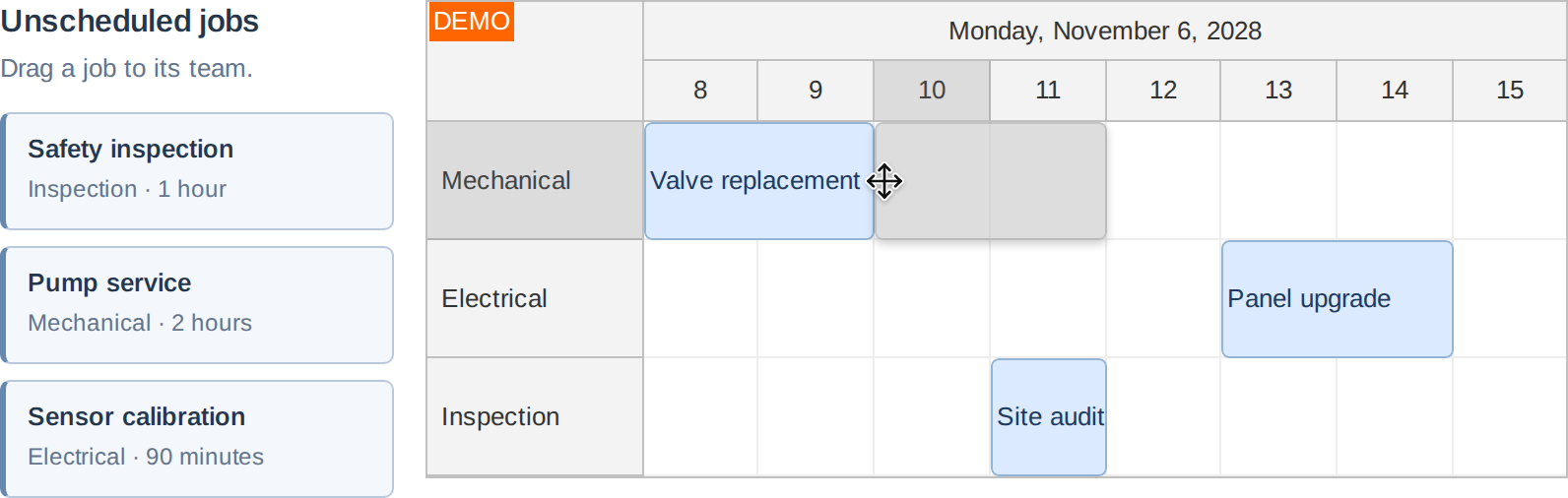
DayPilot JavaScript Scheduler supports drag and drop from an external source (from outside of the Scheduler component).
This feature is useful for implementing the following scenario:
The Scheduler shows the current time schedule.
You need to display a separate list of events that are not scheduled yet.
The unscheduled events can be dragged to the calendar/scheduler.
Activating the External Items
You need to activate the items in the list using DayPilot.Scheduler.makeDraggable() method:
<div style="float:left; width: 150px;">
  Drag items from this list to the scheduler:
  <ul id="external">
      <li data-id="123" data-duration="1800"><span style="cursor:move">Item #123 (30 minutes)</span></li>
      <li data-id="124" data-duration="3600"><span style="cursor:move">Item #124 (60 minutes)</span></li>
  </ul>
</div>

<script type="text/javascript">
function makeDraggable() {
  var parent = document.getElementById("external");
  var items = parent.getElementsByTagName("li");
  for (var i = 0; i < items.length; i++) {
      var e = items[i];
      var item = {
          element: e,
          data: {
            id: e.getAttribute("data-id"),
            text: e.innerText,
            duration: e.getAttribute("data-duration")
          }
      };
      DayPilot.Scheduler.makeDraggable(item);
  }
}
</script>
Item properties:
element (object) - the element to be removed on drop
id (string) - event ID
text (string) - event text
duration (integer) - event duration in seconds
keepElement (boolean) - set to true if the original element should not be removed from DOM on drop
externalCssClass (string) - CSS class that will be applied to the moving shadow (when it is outside of the Scheduler)
externalHtml (string) - HTML that will be added to the moving shadow (when it is outside of the Scheduler)
The event id, text, and duration will be passed to onEventMove event handler on drop.
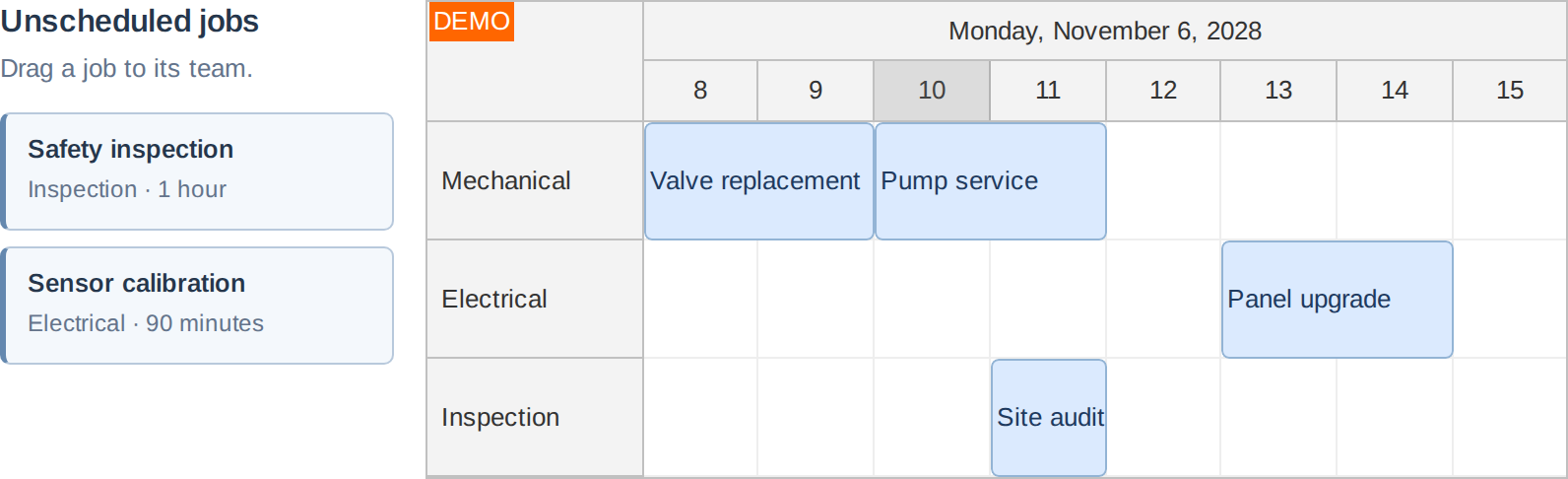
In this example, a successful drop places Pump service from 10:00 to 12:00 and the application removes it from the unscheduled list. The other jobs remain available.
After dropping the object the standard EventMove event is triggered (handling specified by eventMoveHandling). You can detect the external source by checking the value of args.external property in onEventMove.
Touch Support
The DayPilot.Scheduler.makeDraggable() method is compatible with touch devices and it is possible to move the item using touch dragging.
JavaScript Tutorials
API: events.list, resources.
The examples create one unscheduled task that can be dropped into a room and time slot. The framework owns an empty source container; application code appends the draggable child so DayPilot can remove that child after a successful drop.
The framework examples use DayPilot Pro. For installation, see the Angular, React or Vue Scheduler guide.
Angular
Use @ViewChild to access the source container and call makeDraggable() in ngAfterViewInit(). ngOnDestroy() stops dragging and clears any remaining child.
import {Component, ViewChild, ElementRef, AfterViewInit, OnDestroy} from "@angular/core";
import {DayPilot, DayPilotModule} from "daypilot-pro-angular";

@Component({
  selector: "app-scheduler-example",
  standalone: true,
  imports: [DayPilotModule],
  template: `
    <div #sourceHost></div>
    <daypilot-scheduler [config]="config"></daypilot-scheduler>
  `
})
export class SchedulerExampleComponent implements AfterViewInit, OnDestroy {
  @ViewChild("sourceHost") sourceHost!: ElementRef<HTMLDivElement>;
  config: DayPilot.SchedulerConfig = {
    startDate: "2026-11-01",
    days: 30,
    scale: "Day",
    timeHeaders: [{groupBy: "Month"}, {groupBy: "Day", format: "d"}],
    resources: [{id: "A", name: "Room A"}, {id: "B", name: "Room B"}],
    events: [{id: 1, text: "Planning", resource: "A", start: "2026-11-03", end: "2026-11-06"}, {id: 2, text: "Delivery", resource: "B", start: "2026-11-08", end: "2026-11-11"}]
  };

  ngAfterViewInit() {
    const item = document.createElement("div");
    item.textContent = "Unscheduled task";
    item.style.cssText = "padding: 10px; margin: 8px 0; border: 1px solid #888; cursor: move;";
    this.sourceHost.nativeElement.appendChild(item);
    DayPilot.Scheduler.makeDraggable({element: item, data: {id: "unscheduled", text: "Unscheduled task", duration: 86400}});
  }
  ngOnDestroy() { DayPilot.Scheduler.stopDragging(); this.sourceHost.nativeElement.replaceChildren(); }
}
Angular Tutorials
React
Create the draggable child inside useEffect after the container ref is available. Return cleanup that stops dragging and removes the child when the effect is disposed.
import React, {useRef, useEffect} from "react";
import {DayPilot, DayPilotScheduler} from "daypilot-pro-react";

export default function SchedulerExample() {
  const sourceHost = useRef(null);
  useEffect(() => {
    const item = document.createElement("div");
    item.textContent = "Unscheduled task";
    item.style.cssText = "padding: 10px; margin: 8px 0; border: 1px solid #888; cursor: move;";
    sourceHost.current.appendChild(item);
    DayPilot.Scheduler.makeDraggable({element: item, data: {id: "unscheduled", text: "Unscheduled task", duration: 86400}});
    return () => { DayPilot.Scheduler.stopDragging(); item.remove(); };
  }, []);

  return <div>
    <div ref={sourceHost} />

    <DayPilotScheduler
      startDate={"2026-11-01"}
      days={30}
      scale={"Day"}
      timeHeaders={[{groupBy: "Month"}, {groupBy: "Day", format: "d"}]}
      resources={[{id: "A", name: "Room A"}, {id: "B", name: "Room B"}]}
      events={[{id: 1, text: "Planning", resource: "A", start: "2026-11-03", end: "2026-11-06"}, {id: 2, text: "Delivery", resource: "B", start: "2026-11-08", end: "2026-11-11"}]}
    />
  </div>;
}
React Tutorials
Vue
Initialize the draggable child in onMounted() using the source container's template ref. onUnmounted() stops dragging and removes any remaining child.
<script setup>
import {ref, onMounted, onUnmounted} from "vue";
import {DayPilot, DayPilotScheduler} from "daypilot-pro-vue";

const sourceHost = ref(null);
const startDate = "2026-11-01";
const days = 30;
const scale = "Day";
const timeHeaders = [{groupBy: "Month"}, {groupBy: "Day", format: "d"}];
const resources = [{id: "A", name: "Room A"}, {id: "B", name: "Room B"}];
const events = [{id: 1, text: "Planning", resource: "A", start: "2026-11-03", end: "2026-11-06"}, {id: 2, text: "Delivery", resource: "B", start: "2026-11-08", end: "2026-11-11"}];

let item;
onMounted(() => {
  item = document.createElement("div");
    item.textContent = "Unscheduled task";
    item.style.cssText = "padding: 10px; margin: 8px 0; border: 1px solid #888; cursor: move;";
    sourceHost.value.appendChild(item);
    DayPilot.Scheduler.makeDraggable({element: item, data: {id: "unscheduled", text: "Unscheduled task", duration: 86400}});
});
onUnmounted(() => { DayPilot.Scheduler.stopDragging(); item?.remove(); });
</script>

<template>
  <div>
    <div ref="sourceHost"></div>

    <DayPilotScheduler
      :startDate="startDate"
      :days="days"
      :scale="scale"
      :timeHeaders="timeHeaders"
      :resources="resources"
      :events="events"
    />
  </div>
</template>
Vue Tutorials
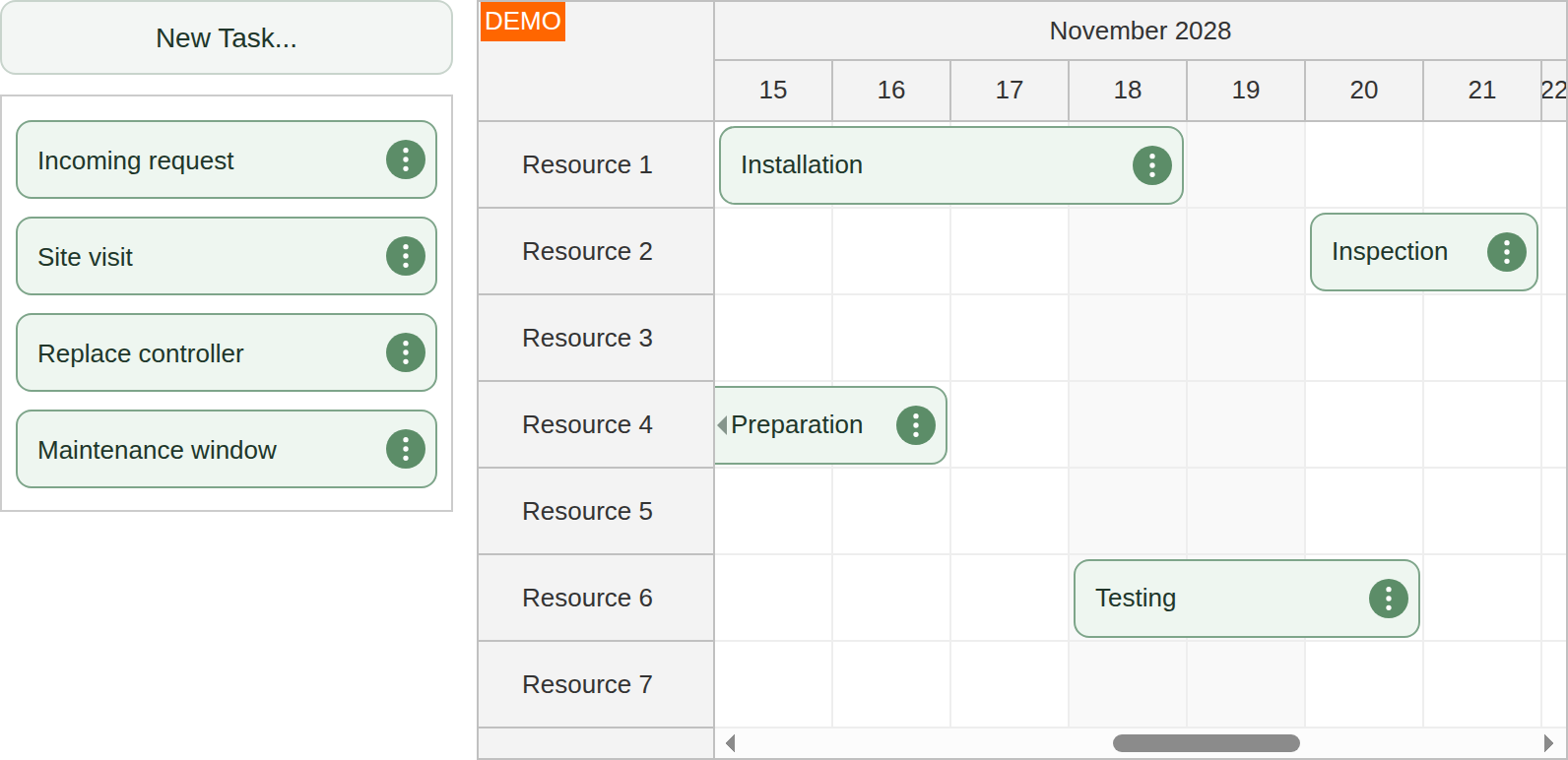
The Vue Scheduler: Queue of Unscheduled Tasks tutorial shows how to use the Queue component to display a list of tasks that can be dragged to the Vue Scheduler.
The queue uses the same item styling as the Vue Scheduler component.
The items can be moved using drag and drop in both directions (to and from the Vue Scheduler).
The queue is ordered and users can change the order by dragging the items.
AngularJS
In AngularJS, it's possible to activate items using a simple directive (daypilot-draggable):
HTML
<ul>
    <li daypilot-draggable data-id="1" data-duration="1800">Draggable item #1</li>
    <li daypilot-draggable data-id="2" data-duration="3600">Draggable item #2</li>
</ul>
JavaScript
app.directive("daypilotDraggable", function(){
    return {
        link: function(scope, element, attributes){
            var el = element[0];
            el.style.cursor = "move";
            DayPilot.Scheduler.makeDraggable({
                element: el,
                id: el.getAttribute("data-id"),
                duration: el.getAttribute("data-duration"),
                text: el.innerText
            });

        }
    };
});Availability
Availability of this feature in DayPilot editions:
| Product | Lite | Pro |
|---|---|---|
| DayPilot for JavaScript | ||
| DayPilot for ASP.NET WebForms | ||
| DayPilot for ASP.NET MVC | ||
| DayPilot for Java |