 DayPilot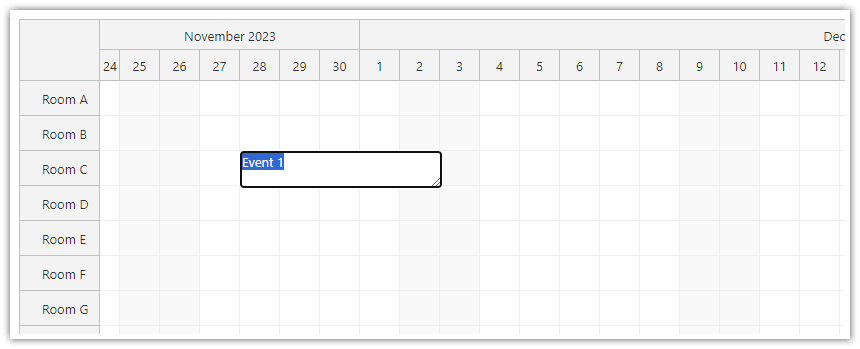
The JavaScript Scheduler component supports editing events using an input box that is displayed inline, at the event location.
You can map the event click event to trigger the inline editing mode or you can activate it programmatically using the events.edit() method.
JavaScript
To map the click event to inline editing, set the eventClickHandling property to "Edit".
To save the new text value of the event to the database, use the onEventEdit or onEventEdited event handlers:
<div id="dp"></div>
<script type="text/javascript">
  var dp = new DayPilot.Scheduler("dp", {
    eventClickHandling: "Edit",
    onEventEdited: async (args) => {
      const id = args.e.id();
      const params = {
        text: args.newText
      };
      try { await DayPilot.Http.post(`/api/event/${id}`, params); }
      catch { await DayPilot.Modal.alert("Saving failed; the local edit is still visible."); return; }
      dp.message("Event text changed to " + args.newText);
    },
    // ...
  });
  dp.init();
</script>
The following Scheduler configuration example lets you implement a "create-and-edit" feature.
When you select a time range (e.g., by clicking a cell) it will immediately create a blank event there and activates the inline editing using the events.edit() method:
{
  onTimeRangeSelected: (args) => {
    const e = new DayPilot.Event({
        start: args.start,
        end: args.end,
        id: DayPilot.guid(),
        resource: args.resource,
        text: "",
        tags: {justCreated: true}
    });
    dp.events.add(e);
    dp.clearSelection();
    dp.events.edit(e);
  },
  onEventEdit: (args) => {
    if (args.e.tag("justCreated")) {
        if (args.canceled || args.newText === "") {
            args.preventDefault();
            dp.events.remove(args.e);
        }
        args.e.data.tags.justCreated = false;
    }
  },
  // ...
}
Note that args.canceled is available in onEventEdit and onEventEdited since version 8.1.1914.
See also:
Demo:
API: eventClickHandling, eventDoubleClickHandling.
The framework examples activate inline editing on double-click and disable single-click handling. Edited names remain local until your application saves them using the editing callbacks described above.
The framework examples use DayPilot Pro. For installation, see the Angular, React or Vue Scheduler guide.
Angular
import {Component} from "@angular/core";
import {DayPilot, DayPilotModule} from "daypilot-pro-angular";

@Component({
  selector: "app-scheduler-example",
  standalone: true,
  imports: [DayPilotModule],
  template: `

    <daypilot-scheduler [config]="config"></daypilot-scheduler>
  `
})
export class SchedulerExampleComponent {
  config: DayPilot.SchedulerConfig = {
    startDate: "2026-11-01",
    days: 30,
    scale: "Day",
    timeHeaders: [{groupBy: "Month"}, {groupBy: "Day", format: "d"}],
    resources: [{id: "A", name: "Room A"}, {id: "B", name: "Room B"}],
    events: [{id: 1, text: "Planning", resource: "A", start: "2026-11-03", end: "2026-11-06"}, {id: 2, text: "Delivery", resource: "B", start: "2026-11-08", end: "2026-11-11"}],
    eventClickHandling: "Disabled",
    eventDoubleClickHandling: "Edit"
  };

}
React
import React from "react";
import {DayPilot, DayPilotScheduler} from "daypilot-pro-react";

export default function SchedulerExample() {

  return <div>

    <DayPilotScheduler
      startDate={"2026-11-01"}
      days={30}
      scale={"Day"}
      timeHeaders={[{groupBy: "Month"}, {groupBy: "Day", format: "d"}]}
      resources={[{id: "A", name: "Room A"}, {id: "B", name: "Room B"}]}
      events={[{id: 1, text: "Planning", resource: "A", start: "2026-11-03", end: "2026-11-06"}, {id: 2, text: "Delivery", resource: "B", start: "2026-11-08", end: "2026-11-11"}]}
      eventClickHandling={"Disabled"}
      eventDoubleClickHandling={"Edit"}
    />
  </div>;
}
Vue
<script setup>
import {DayPilot, DayPilotScheduler} from "daypilot-pro-vue";

const startDate = "2026-11-01";
const days = 30;
const scale = "Day";
const timeHeaders = [{groupBy: "Month"}, {groupBy: "Day", format: "d"}];
const resources = [{id: "A", name: "Room A"}, {id: "B", name: "Room B"}];
const events = [{id: 1, text: "Planning", resource: "A", start: "2026-11-03", end: "2026-11-06"}, {id: 2, text: "Delivery", resource: "B", start: "2026-11-08", end: "2026-11-11"}];
const eventClickHandling = "Disabled";
const eventDoubleClickHandling = "Edit";

</script>

<template>
  <div>

    <DayPilotScheduler
      :startDate="startDate"
      :days="days"
      :scale="scale"
      :timeHeaders="timeHeaders"
      :resources="resources"
      :events="events"
      :eventClickHandling="eventClickHandling"
      :eventDoubleClickHandling="eventDoubleClickHandling"
    />
  </div>
</template>
ASP.NET WebForms
Client side
<DayPilot:DayPilotScheduler runat="server" id="DayPilotScheduler1"
  ...
  EventClickHandling="Edit"
  EventEditHandling="CallBack"
  OnEventEdit="DayPilotScheduler1_EventEdit"
/>
Server side
protected void DayPilotScheduler1_EventEdit(object sender, DayPilot.Web.Ui.Events.EventEditEventArgs e)
{
  UpdateEventText(e.Id, e.NewTest);  // your method
  DayPilotScheduler1.DataSource = LoadData();  // your method
  DayPilotScheduler1.DataBind();
  DayPilotScheduler1.Update();
}
ASP.NET MVC
Client side:
@Html.DayPilotScheduler("dps", new DayPilotSchedulerConfig {
  BackendUrl = ResolveUrl("~/Scheduler/Backend"),
  ...
  EventClickHandling = EventClickHandlingType.Edit,
  EventEditHandling = EventEditHandlingType.CallBack
})
Server side:
protected override void OnEventEdit(EventEditArgs e)
{
  new EventManager(Controller).UpdateText(e.Id, e.NewText);
  UpdateWithMessage("Event updated.");
}
Availability
Availability of this feature in DayPilot editions:
| Product | Lite | Pro |
|---|---|---|
| DayPilot for JavaScript | ||
| DayPilot for ASP.NET WebForms | ||
| DayPilot for ASP.NET MVC | ||
| DayPilot for Java |