 DayPilot
Customize Scheduler events to show the information and actions your application needs: event types, dates, icons, popup details or a custom content layout.
Use onBeforeEventRender to set colors, CSS classes, HTML, active areas and behavior for each event. This works in JavaScript and in the Angular, React and Vue components.
For content built with framework components, use the Angular event template, React DOM callback or Vue event slot shown below. You can combine these with onBeforeEventRender, for example to use a React component for the content and set a duration bar color based on the event type.
The event data reference lists the available appearance and behavior properties, including options for disabling moving, resizing or clicking.
Accessing Event Data
In onBeforeEventRender, args.data contains a shallow copy of the event data from events.list. Store application-specific fields in tags to avoid collisions with built-in properties. The event type example below uses args.data.tags.type.
JavaScript and Shared Configuration
The following callbacks belong in the Scheduler configuration object. In Angular, add them to the object bound to [config]; in React and Vue, use the same callbacks as component configuration properties.
Example: Custom CSS Class
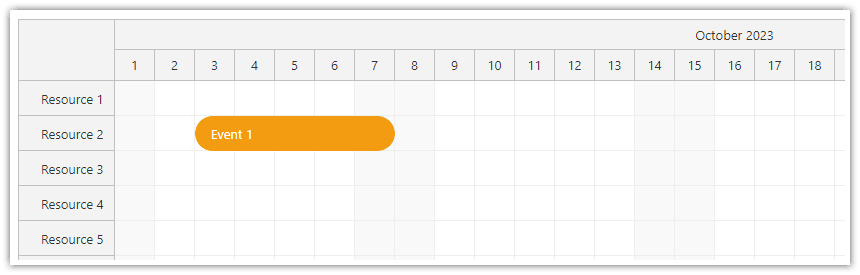
The onBeforeEventRender event handler sets a custom CSS class:
onBeforeEventRender: args => {
  args.data.cssClass = "rounded-event";
}
This CSS overrides selected styles of the default theme (scheduler_default). It sets border radius, adds padding for the event content and hides the duration bar.
.rounded-event {
  border-radius: 20px;
}
.rounded-event .scheduler_default_event_inner {
  border-radius: 20px;
  padding: 15px;
  background: #f39c12;
  color: white;
  border: 1px solid #f39c12;
}
.rounded-event .scheduler_default_event_bar {
  display: none;
}
Example: Custom Event Content (Raw HTML)
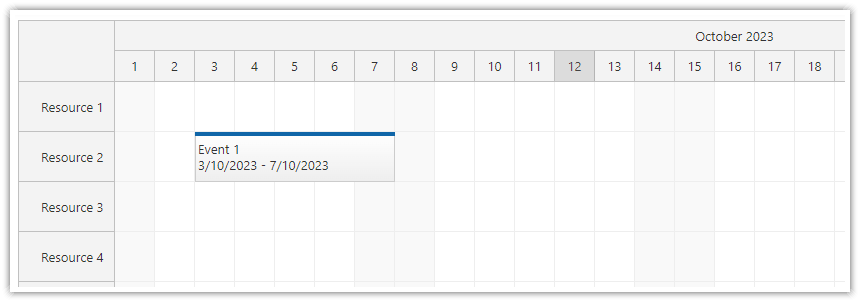
This example uses the following settings:
It sets a global custom event height.
It uses eventEndSpec set to
"Date", so event end dates are inclusive dates.It defines custom event content as raw HTML, using the
onBeforeEventRenderevent.
Please note that if you insert the value from args.data.text into the HTML, it must be encoded to protect your application against XSS attacks.
eventHeight: 50,
eventEndSpec: "Date",
onBeforeEventRender: args => {
  const text = DayPilot.Util.escapeHtml(args.data.text);
  const start = new DayPilot.Date(args.data.start).toString("d/M/yyyy");
  const end = new DayPilot.Date(args.data.end).toString("d/M/yyyy");
  args.data.html = `${text}<br/>${start} - ${end}`;
},
More Customization Examples
Example: Event Types
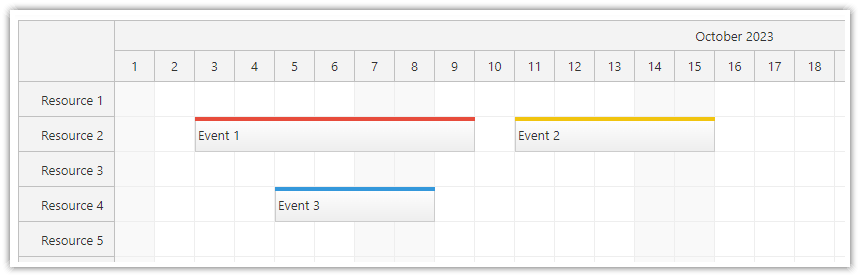
The appearance of an event can be customized based on its type or other properties.
In this example, the event type is stored within the custom type property of the tags object. The onBeforeEventRender event specifies a unique duration bar color value (barColor) for each event type.
onBeforeEventRender: args => {
  switch (args.data.tags.type) {
    case "important":
      args.data.barColor = "#e74c3c";
      break;
    case "business":
      args.data.barColor = "#3498db";
      break;
    case "personal":
      args.data.barColor = "#2ecc71";
      break;
    case "vacation":
      args.data.barColor = "#f1c40f";
      break;
  }
}
Event data:
const events = [
  {
    id: 1,
    start: "2023-10-03",
    end: "2023-10-10",
    resource: "R2",
    text: "Event 1",
    tags: {
      type: "important"
    }
  },
  {
    id: 2,
    start: "2023-10-11",
    end: "2023-10-16",
    resource: "R2",
    text: "Event 2",
    tags: {
      type: "vacation"
    }
  },
  {
    id: 3,
    start: "2023-10-05",
    end: "2023-10-09",
    resource: "R4",
    text: "Event 3",
    tags: {
      type: "business"
    }
  },
];
dp.update({events});
Example: Event Icons
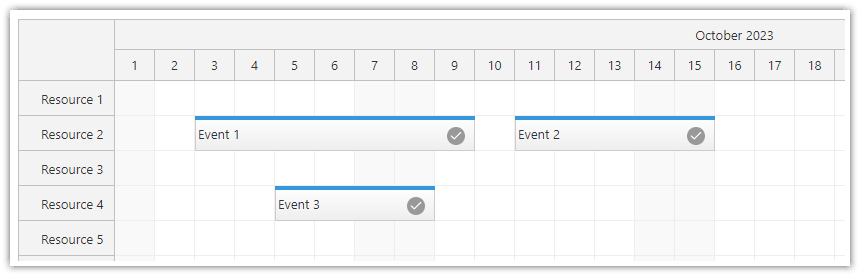
In this example, onBeforeEventRender is used to change the event bar color to light blue and to add a checkmark SVG icon to the event through an active area.
Active areas can be used to insert special elements (such as text, icons, images) and to define specific behaviors for these elements, including context menus, drag handles, popup details, edit dialogs, and more.
onBeforeEventRender: args => {
  args.data.barColor = "#3498db";
  args.data.areas = [
    {
      right: 10,
      top: "calc(50% - 7px)",
      width: 18,
      height: 18,
      symbol: "icons/daypilot.svg#checkmark-2",
      backColor: "#999999",
      fontColor: "#ffffff",
      padding: 2,
      style: "border-radius: 50%"
    }
  ];
}
Example: Pop-Up Bubble with Event Details
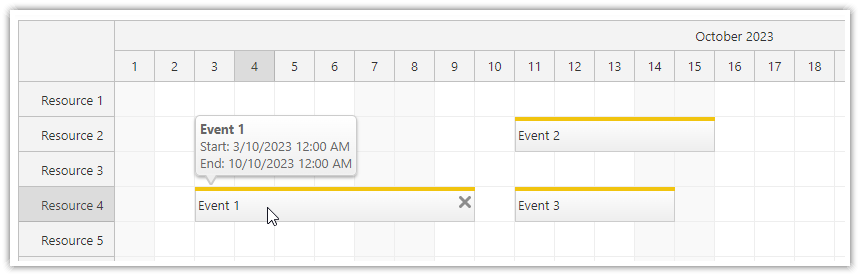
This example sets static content for an event bubble in the onBeforeEventRender event handler. If the bubbleHtml property is specified, the bubble will appear above the event when hovered over.
onBeforeEventRender: args => {
  args.data.barColor = "#f1c40f";

  const text = DayPilot.Util.escapeHtml(args.data.text);
  const start = new DayPilot.Date(args.data.start).toString("d/M/yyyy h:mm tt");
  const end = new DayPilot.Date(args.data.end).toString("d/M/yyyy h:mm tt");

  args.data.bubbleHtml = `<b>${text}</b><br/>Start: ${start}<br/>End: ${end}`;
}
Tutorials
API: eventHeight.
The framework examples display the reservation name in bold and its date range below. Keep colors, active areas and other event properties in rendering callbacks; the content examples below focus on framework-rendered text.
The framework examples use DayPilot Pro. For installation, see the Angular, React or Vue Scheduler guide.
Angular
Place ng-template inside daypilot-scheduler and select the event context using daypilotTemplate. The let-event="event" variable exposes the event object; Angular interpolation escapes its label.
The ng-template example requires DayPilot Pro for Angular version 2026.4.7099 or later. Use Angular Scheduler templates for setup and supported contexts.
import {Component} from "@angular/core";
import {DayPilot, DayPilotModule} from "daypilot-pro-angular";

@Component({
  selector: "app-scheduler-example",
  standalone: true,
  imports: [DayPilotModule],
  template: `

    <daypilot-scheduler [config]="config"><ng-template daypilotTemplate="event" daypilotTemplateFor="scheduler" let-event="event"><strong>{{ event.text() }}</strong><br><small>{{ event.start().toString("d MMM") }} – {{ event.end().toString("d MMM") }} (end exclusive)</small></ng-template></daypilot-scheduler>
  `
})
export class SchedulerExampleComponent {
  config: DayPilot.SchedulerConfig = {
    startDate: "2026-11-01",
    days: 30,
    scale: "Day",
    timeHeaders: [{groupBy: "Month"}, {groupBy: "Day", format: "d"}],
    resources: [{id: "A", name: "Room A"}, {id: "B", name: "Room B"}],
    events: [{id: 1, text: "Planning", resource: "A", start: "2026-11-03", end: "2026-11-06"}, {id: 2, text: "Delivery", resource: "B", start: "2026-11-08", end: "2026-11-11"}],
    eventHeight: 50
  };

}
React
Use onBeforeEventDomAdd to assign JSX to args.element. The event is available as args.e, and React escapes text rendered through JSX expressions.
import React from "react";
import {DayPilot, DayPilotScheduler} from "daypilot-pro-react";

export default function SchedulerExample() {

  return <div>

    <DayPilotScheduler
      startDate={"2026-11-01"}
      days={30}
      scale={"Day"}
      timeHeaders={[{groupBy: "Month"}, {groupBy: "Day", format: "d"}]}
      resources={[{id: "A", name: "Room A"}, {id: "B", name: "Room B"}]}
      events={[{id: 1, text: "Planning", resource: "A", start: "2026-11-03", end: "2026-11-06"}, {id: 2, text: "Delivery", resource: "B", start: "2026-11-08", end: "2026-11-11"}]}
      eventHeight={50}
      onBeforeEventDomAdd={args => { args.element = <div><strong>{args.e.text()}</strong><br/><small>{args.e.start().toString("d MMM")} – {args.e.end().toString("d MMM")} (end exclusive)</small></div>; }}
    />
  </div>;
}
Vue
Use the named #event slot and destructure its event value. Vue interpolation renders the label as text and lets you format the event dates in the slot.
<script setup>
import {DayPilot, DayPilotScheduler} from "daypilot-pro-vue";

const startDate = "2026-11-01";
const days = 30;
const scale = "Day";
const timeHeaders = [{groupBy: "Month"}, {groupBy: "Day", format: "d"}];
const resources = [{id: "A", name: "Room A"}, {id: "B", name: "Room B"}];
const events = [{id: 1, text: "Planning", resource: "A", start: "2026-11-03", end: "2026-11-06"}, {id: 2, text: "Delivery", resource: "B", start: "2026-11-08", end: "2026-11-11"}];
const eventHeight = 50;

</script>

<template>
  <div>

    <DayPilotScheduler
      :startDate="startDate"
      :days="days"
      :scale="scale"
      :timeHeaders="timeHeaders"
      :resources="resources"
      :events="events"
      :eventHeight="eventHeight"
    >
      <template #event="{event}"><div><strong>{{ event.text() }}</strong><br><small>{{ event.start().toString("d MMM") }} – {{ event.end().toString("d MMM") }} (end exclusive)</small></div></template>
    </DayPilotScheduler>
  </div>
</template>
For an example with interactive controls, see How to Add Interactive Elements to Vue Scheduler Events Using Templates.
ASP.NET WebForms
Appearance properties:
Html - event HTML
DurationBarColor - CSS color of the duration bar
DurationBarBackColor - CSS color of the duration bar background
DurationBarImageUrl - image that will be used for the duration bar
DurationBarVisible - whether the duration/progress bar should be visible
BackgroundColor - CSS color of the event background
CssClass - event CSS class
BackgroundImage - event background image
BackgroundRepeat - event background repeat style
Behavior properties:
Areas - active areas
ToolTip - event tool tip
BubbleHtml - event bubble HTML (the bubble content will not be loaded from the server if the BubbleHtml is set)
ContextMenuClientName - event-specific context menu
EventClickEnabled - if set to false, disables event clicking
EventResizeEnabled - if set to false, disables event resizing
EventMoveEnabled - if set to false, disables event moving
EventMoveVerticalEnabled
EventMoveHorizontalEnabled
EventRightClickEnabled - if set to false, disables event right clicking
EventDoubleClickEnabled - if set to false, disables event double clicking
All Event*Enabled properties can only disable an option that is globally enabled.
Accessing event data object
You can access the data source item using e.DataItem property.
protected void DayPilotScheduler1_BeforeEventRender(object sender, BeforeEventRenderEventArgs e)
{
  // accessing the original object passed in DataSource collection
  object original = e.DataItem.Source;

  // accessing custom original object field to set BubbleHtml and BackgroundColor
  e.BubbleHtml = (string) e.DataItem["detail"];
  e.BackgroundColor = (string) e.DataItem["color"];

  // adding active areas for "delete" and "context menu" actions
  e.Areas.Add(new Area().Width(17).Bottom(9).Right(2).Top(3).CssClass("event_action_delete").JavaScript("dps_areas.commandCallBack('delete', {id:e.value() });"));
  e.Areas.Add(new Area().Width(17).Bottom(9).Right(19).Top(3).CssClass("event_action_menu").ContextMenu("menu"));

  // modifying the event HTML (recurring events)
  if (e.Recurrent)
  {
      e.Html += " (R)";
  }
}
Note that e.DataItem is only accessible if DayPilotScheduler.DataBind() has been called to reload the event data. If you have ViewState enabled the events will be accessible during PostBacks but e.DataItem will be null.
In the Pro version, you can store selected data fields with the events using DataTagFields instead - these custom fields will be serialized to ViewState. The fields specified using DataTagFields will be accessible in the server-side event handlers (using e.Tag[fieldName]) and on the client side (e.tag(fieldName)].
<DayPilot:DayPilotScheduler
  ...
  DataTagFields="detail, color"
/>


protected void DayPilotScheduler1_BeforeEventRender(object sender, BeforeEventRenderEventArgs e)
{
  e.BubbleHtml = e.Tag["detail"];
  e.BackgroundColor = e.Tag["color"];
}
Example:
protected void DayPilotScheduler1_BeforeEventRender(object sender, BeforeEventRenderEventArgs e)
{
  e.Html = "Custom Event Text";
}
Availability
Availability of this feature in DayPilot editions:
| Product | Lite | Pro |
|---|---|---|
| DayPilot for JavaScript | ||
| DayPilot for ASP.NET WebForms | ||
| DayPilot for ASP.NET MVC | ||
| DayPilot for Java |