 DayPilot
Customize resource headers using onBeforeRowHeaderRender. The callback runs as headers are prepared and can run repeatedly during progressive rendering. It also applies to generated rows in Gantt and Timesheet views.
It is possible to change the HTML, configure active areas, and set custom properties such as CSS class, background color, etc.
JavaScript Scheduler
The JavaScript Scheduler lets you customize the row headers using the onBeforeRowHeaderRender event:
It is fired in real time whenever the row header is actually rendered.
It can be fired repeatedly as the row headers are rendered progressively (and removed if you scroll them out of the viewport).
You can access the row object here using
args.row(DayPilot.Row).You can also access the related events using args.row.events.all() or args.row.events.forRange() methods and use this information to show dynamic data (e.g. availability).
Example Scheduler config:
{
  onBeforeRowHeaderRender: args => {
    args.row.backColor = "#e0e0e0";
    args.row.columns[0].text = args.row.data.description;
  }
}
Styling Row Headers using Custom CSS

You can apply custom CSS class to selected rows using onBeforeRowHeaderRender event handler.
CSS
<style>
  .row1 {
      color: white;
      background: red;
  }
</style>
JavaScript
dp.onBeforeRowHeaderRender = function(args) {
  args.row.cssClass = "row1";
};
Adding a Color Bar using Active Areas

Global CSS to make space for the bar (when row header width auto-fit is enabled):
<style>
    .scheduler_default_rowheader_inner
    {
        padding-right: 10px;
    }
</style>
Adding a bar using row header active areas:
dp.onBeforeRowHeaderRender = function(args) {
  var color = (args.row.index % 2) ? "#cc4125" : "#e69138";   // alternating colors
  args.row.areas = [
      { right: 2, top: 2, bottom: 2, width: 6, backColor: color }
  ];
};
When using row header columns, it's necessary to add the area to the column object:
dp.rowHeaderColumns = [
  { text: "Name", display: "name" },
  { text: "Capacity", display: "capacity" }
];
dp.onBeforeRowHeaderRender = function(args) {
  var color = (args.row.index % 2) ? "#cc4125" : "#e69138"; // alternating colors
  var last = args.row.columns.length - 1;
  args.row.columns[last].areas = [
    { right: 2, top: 2, bottom: 2, width: 6, backColor: color }
  ];
};
JavaScript Scheduler Tutorials
API: rowHeaderColumns, onBeforeRowHeaderRender.
The framework examples show room names and descriptions in separate columns, with the first column in bold. onBeforeRowHeaderRender sets Room A's background; the framework content mechanism supplies the text. Rendering may repeat as rows enter the viewport.
The framework examples use DayPilot Pro. For installation, see the Angular, React or Vue Scheduler guide.
Angular
Use a daypilotTemplate="rowHeader" template inside the Scheduler. let-row="row" exposes the resource row and let-x="x" identifies the column being rendered.
The ng-template example requires DayPilot Pro for Angular version 2026.4.7099 or later. Use Angular Scheduler templates for setup and supported contexts.
import {Component} from "@angular/core";
import {DayPilot, DayPilotModule} from "daypilot-pro-angular";

@Component({
  selector: "app-scheduler-example",
  standalone: true,
  imports: [DayPilotModule],
  template: `

    <daypilot-scheduler [config]="config"><ng-template daypilotTemplate="rowHeader" daypilotTemplateFor="scheduler" let-row="row" let-x="x"><span [style.font-weight]="x === 0 ? 'bold' : 'normal'">{{ x === 0 ? row.name : row.data.description }}</span></ng-template></daypilot-scheduler>
  `
})
export class SchedulerExampleComponent {
  config: DayPilot.SchedulerConfig = {
    startDate: "2026-11-01",
    days: 30,
    scale: "Day",
    timeHeaders: [{groupBy: "Month"}, {groupBy: "Day", format: "d"}],
    resources: [{id: "A", name: "Room A", description: "Projector"}, {id: "B", name: "Room B", description: "Whiteboard"}],
    events: [{id: 1, text: "Planning", resource: "A", start: "2026-11-03", end: "2026-11-06"}, {id: 2, text: "Delivery", resource: "B", start: "2026-11-08", end: "2026-11-11"}],
    rowHeaderColumns: [{text: "Room", display: "name"}, {text: "Details", display: "description"}],
    onBeforeRowHeaderRender: args => { if (args.row.id === "A") { args.row.backColor = "#dbeafe"; } }
  };

}
Angular Scheduler Tutorial
React
Set args.element to JSX in onBeforeRowHeaderDomAdd. Use args.x to choose the column content and args.row to read its resource data.
import React from "react";
import {DayPilot, DayPilotScheduler} from "daypilot-pro-react";

export default function SchedulerExample() {

  return <div>

    <DayPilotScheduler
      startDate={"2026-11-01"}
      days={30}
      scale={"Day"}
      timeHeaders={[{groupBy: "Month"}, {groupBy: "Day", format: "d"}]}
      resources={[{id: "A", name: "Room A", description: "Projector"}, {id: "B", name: "Room B", description: "Whiteboard"}]}
      events={[{id: 1, text: "Planning", resource: "A", start: "2026-11-03", end: "2026-11-06"}, {id: 2, text: "Delivery", resource: "B", start: "2026-11-08", end: "2026-11-11"}]}
      rowHeaderColumns={[{text: "Room", display: "name"}, {text: "Details", display: "description"}]}
      onBeforeRowHeaderRender={args => { if (args.row.id === "A") { args.row.backColor = "#dbeafe"; } }}
      onBeforeRowHeaderDomAdd={args => { args.element = <span style={{fontWeight: args.x === 0 ? "bold" : "normal"}}>{args.x === 0 ? args.row.name : args.row.data.description}</span>; }}
    />
  </div>;
}
Vue
Use the #rowHeader slot with {row, x}. The slot's column index selects either row.name or row.data.description.
<script setup>
import {DayPilot, DayPilotScheduler} from "daypilot-pro-vue";

const startDate = "2026-11-01";
const days = 30;
const scale = "Day";
const timeHeaders = [{groupBy: "Month"}, {groupBy: "Day", format: "d"}];
const resources = [{id: "A", name: "Room A", description: "Projector"}, {id: "B", name: "Room B", description: "Whiteboard"}];
const events = [{id: 1, text: "Planning", resource: "A", start: "2026-11-03", end: "2026-11-06"}, {id: 2, text: "Delivery", resource: "B", start: "2026-11-08", end: "2026-11-11"}];
const rowHeaderColumns = [{text: "Room", display: "name"}, {text: "Details", display: "description"}];
const onBeforeRowHeaderRender = args => { if (args.row.id === "A") { args.row.backColor = "#dbeafe"; } };

</script>

<template>
  <div>

    <DayPilotScheduler
      :startDate="startDate"
      :days="days"
      :scale="scale"
      :timeHeaders="timeHeaders"
      :resources="resources"
      :events="events"
      :rowHeaderColumns="rowHeaderColumns"
      :onBeforeRowHeaderRender="onBeforeRowHeaderRender"
    >
      <template #rowHeader="{row, x}"><span :style="{fontWeight: x === 0 ? 'bold' : 'normal'}">{{ x === 0 ? row.name : row.data.description }}</span></template>
    </DayPilotScheduler>
  </div>
</template>
Vue Scheduler Tutorial
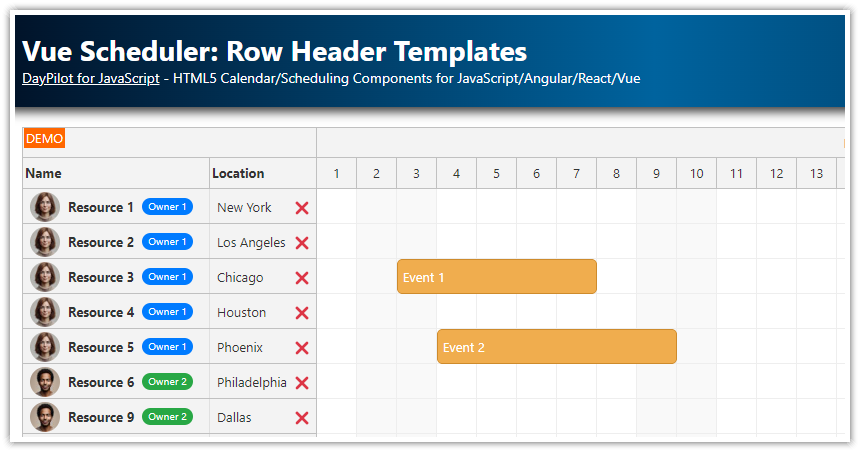
See the Vue Scheduler: Row Header Templates tutorial that shows how to add icons, badges and interactive content to the Vue Scheduler row headers:
ASP.NET WebForms
It's possible to change the following properties:
Areas (row header active areas)
BackgroundColor
Columns (additional row header columns)
CssClass
Html
ToolTip
Background Color Example
protected void DayPilotScheduler1_BeforeResHeaderRender(object sender, DayPilot.Web.Ui.Events.Scheduler.BeforeResHeaderRenderEventArgs e)
{
  if (e.Id == "E")
  {
    e.BackgroundColor = "green";
  }
}
Custom CSS Example
protected void DayPilotScheduler1_BeforeResHeaderRender(object sender, DayPilot.Web.Ui.Events.Scheduler.BeforeResHeaderRenderEventArgs e)
{
  if (e.Id == "E")
  {
    e.CssClass = "my-row";
  }
}
The custom CSS class will be applied to all row header cells (if there are multiple row header columns defined).
Custom HTML Example
You can use the e.Html property to customize the row header HTML (e.g. insert a hyperlink).
protected void DayPilotScheduler1_BeforeResHeaderRender(object sender, DayPilot.Web.Ui.Events.Scheduler.BeforeResHeaderRenderEventArgs e)
{
  string encodedName = System.Web.HttpUtility.HtmlEncode(e.Name);
  e.Html = String.Format("<a href='Resource.aspx?id={0}'>{1}</a>", e.Id, encodedName);
}
ASP.NET MVC
protected override void OnBeforeResHeaderRender(BeforeResHeaderRenderArgs e)
{
  if (Id == "dps_areas")
  {
      e.Areas.Add(new Area().Width(17).Bottom(1).Right(0).Top(0).CssClass("resource_action_menu").Html("<div><div></div></div>").JavaScript("alert(e.Value);"));
  }

  if (e.Columns.Count > 0)
  {
      e.Columns[0].Html = "10 seats";
  }
}
Availability
Availability of this feature in DayPilot editions:
| Product | Lite | Pro |
|---|---|---|
| DayPilot for JavaScript | ||
| DayPilot for ASP.NET WebForms | ||
| DayPilot for ASP.NET MVC | ||
| DayPilot for Java |